
Music Visualizer — Turn It Sideways and See Your Music
Music Visualizer — Turn It Sideways and See Your Music
OnePlayer analyzes the sound as it plays and turns drums, voices and melodies into light on the screen. There are nine visualizers. They fill the screen when you hold iPhone or iPad sideways, and they also appear on iPhone Duo when it is closed and sideways or half-folded on a table.
1. Before you start
- Where it works — iPhone and iPad: turn the device sideways on the Now Playing screen. iPhone Duo: turn the outer display sideways while closed, or stand Duo half-folded on a table.
- Requirements — OnePlayer 5.4 or later.
- Price — Cover & Lyrics is free for everyone. The other visualizers are Premium features, and you can try each one for 10 seconds.
- Your sound is untouched — the visualizer only reads the audio to analyze it and never changes what you hear. It works with local songs and with NAS songs played over SMB or WebDAV.
2. Open the visualizer
On Now Playing, turn your iPhone or iPad sideways and tap the Visualizer button (✦). On iPad it is at the top right; on iPhone it sits next to the play button.
A row of visualizers slides up from the bottom, each one a live preview. Tap one to fill the screen, or tap Done to close the row.
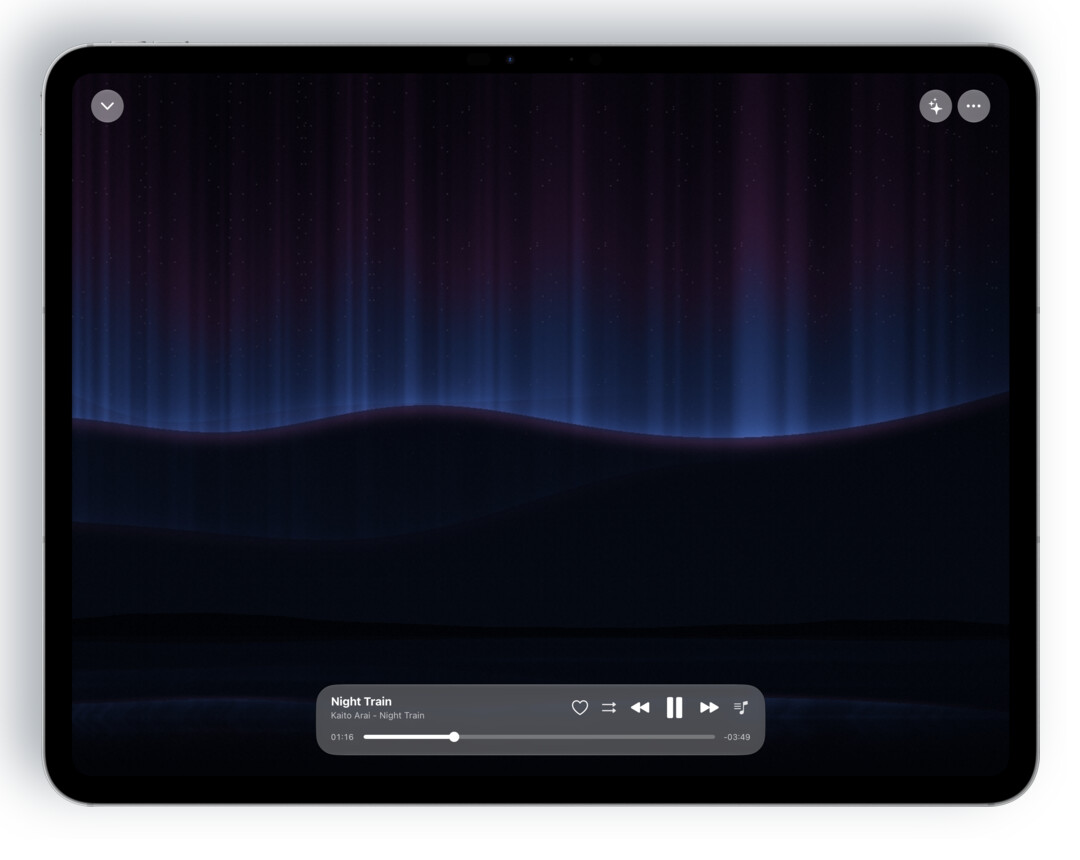
Once a visualizer fills the screen:
- Switch visualizers — swipe left or right on the picture. Its name appears at the top.
- Playback controls — they hide after a few seconds; tap the picture to bring them back. Close, Visualizer and More are at the top; the song title, progress, previous, play, next and Up Next are at the bottom.
- Your choice is remembered — the next time you turn the device sideways, the same visualizer appears.
- Back to the regular player — choose Current Style in the row of visualizers.
When you open Up Next, Now Playing switches back to its regular layout for a moment, and the visualizer returns when you close Up Next.
3. The nine visualizers
Spectrum Bars — 64 bands, with peak markers that drift back down. In More → Visualizer settings, you can switch to an oscilloscope and choose Classic Blue or Artwork Colors.
Cover Ring — the artwork sits inside a ring of light that pulses with the music. Turn on lyrics and the current and next lines appear beside it.
Aurora — an aurora rises and falls above distant hills and reflects on the water, its colors shifting slightly with the artwork.
Magic Keys — keys light up with the melody, and sparks drift up from each lit key.
Stardust — the artwork becomes more than two thousand points of light that rise into a landscape of the spectrum, and strong beats throw them outward.
VU Meter — two classic needle meters, one for each channel. When your player style is not VU Meter, open More → VU Meter Settings to change the skin or the reference level.
Meters — loudness (LUFS), peak level and stereo phase on one screen.
Turntable — a spinning record with the lyrics beside it.
Cover & Lyrics — the artwork with the lyrics, free for everyone.
Lyrics inside the picture
Cover Ring, Aurora and Magic Keys can draw the lyrics into the picture. This is off by default; while a visualizer fills the screen, turn on Lyrics in the More menu. Turntable and Cover & Lyrics show lyrics by default.
4. On iPhone Duo
Closed and sideways — close Duo, turn it sideways and choose a visualizer on Now Playing to fill the outer display. Tap the lyrics button in the column on the right to show or hide the lyrics in the picture.
Half-folded on a table — fold Duo partway and stand it on a table. The top half shows the visualizer, and the bottom half holds the controls:
- A row of visualizer names. Tap one to switch.
- The song title, progress, and previous, play and next.
- A row of buttons at the bottom: Close, Lyrics, Output, Up Next and More. Tap Up Next to see what plays next as Cover Flow on the bottom half.
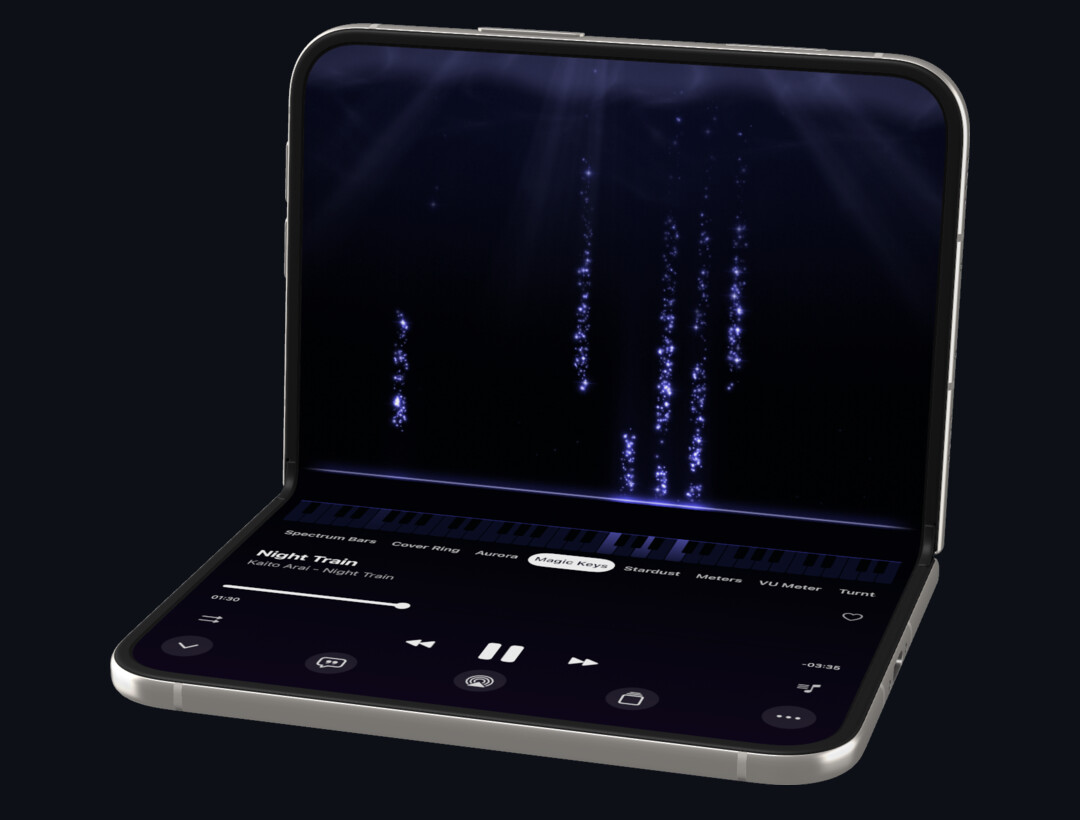
The landscape visualizer and the tabletop posture share one setting, so a visualizer you choose in one place is used in the other.
5. Common questions
The picture was covered after 10 seconds.
The preview of a Premium visualizer has ended. Upgrade to Premium to keep watching, or tap Use Current Style (Use Cover & Lyrics when Duo is half-folded on a table) to switch to a free picture. Each visualizer has its own preview.
The picture says "The visualizer is unavailable for the current output".
The current way of playing is not providing audio that OnePlayer can analyze right now, so the picture pauses. Playback itself is not affected.
Does the visualizer use a lot of battery?
It only draws while it is visible on screen and stops when you go to another page, lock the screen or leave OnePlayer. If you keep it running on your desk for a long time, plug in your device.
How do I go back to the regular landscape player?
Choose Current Style in the row of visualizers.