
Play NAS Music on iPhone: SMB and WebDAV Setup
Direct browsing of SMB or WebDAV is suitable for temporary playback; "Add to Library" will index the songs in the folder and allow the remote songs to appear in OnePlayer's songs, albums and artist pages.
This article belongs to OnePlayer 5.0 Function Collection.
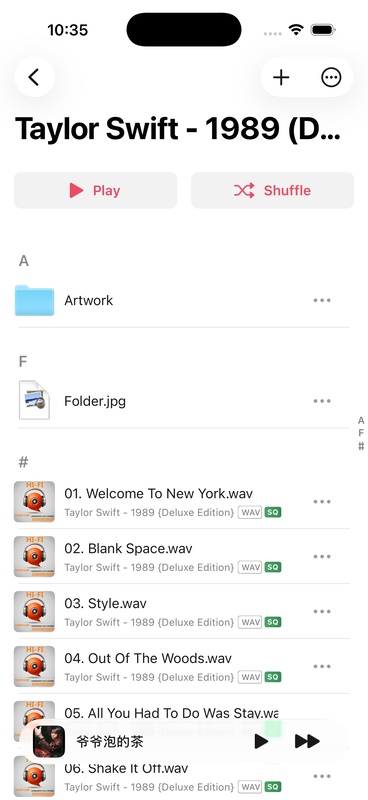
Add a network folder
- Open a saved SMB or WebDAV connection.
- Enter the folder you want to use as the root directory of your music library.
- Click "···" in the upper right corner.
- Select "Add to Database".
- OnePlayer scans subfolders, reads audio metadata, and updates the library.
Scanning process
Scans typically go through the following states:
- Waiting
- Scanning files
- Reading metadata
- Updating database
- Completed
If the app stops during the scan, you can continue the unfinished task the next time you enter the remote repository. Tap the ongoing scan to cancel, tap the added folder to rescan.
What happens after joining the database
OnePlayer will save the index of the remote file and the metadata it read, but it will not automatically copy all the audio to the iPhone. Afterwards you can:
- Search and play remote songs in "Songs".
- Browse the NAS library by album or artist.
- Add remote songs to the normal playlist.
- Read supported embedded covers and lyrics.
- Enable offline caching individually for frequently listened songs.
Avoid duplicate and overlapping directories
Do not index the parent directory and its internal subdirectories at the same time, otherwise the same song may enter the scope of repeated scanning. OnePlayer detects the following situations:
- The current folder is already contained in an indexed parent directory.
- The newly added parent directory contains the existing index subdirectories.
When encountering the second situation, you can confirm "Merge and Scan". Existing song information, playlist relationships, and downloaded content will be retained.
Remove index folder
When removing a folder from a remote repository, you have the following options:
- Keep Songs: Keep the current index records, but the songs will be displayed as unavailable when the server is inaccessible.
- Remove Songs: Remove these remote songs from the library and related playlists.
Neither of these operations will delete the original files on the server. Files already downloaded to visible folders will not be deleted either.
What to do after server content changes
- Add or delete a large number of files: Rescan the corresponding folder.
- Server metadata modified: Use metadata refresh or rescan.
- The song is displayed as unavailable: Confirm the connection and rescan the source.
- The server is permanently offline: use "Clear Unavailable Songs".
Continue to learn
- Automatic discovery of SMB and WebDAV devices
- Caching online songs for offline playback
- Check network playback loading status