
Sound Center Complete User Guide
Sound Center Complete User Guide
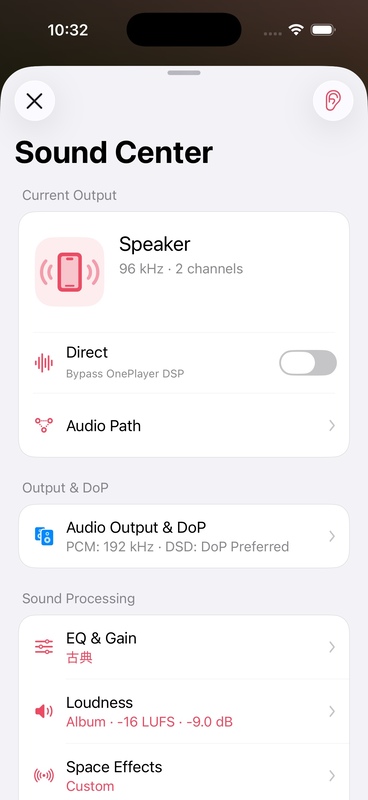
"Sound Center" is a unified entrance for OnePlayer 5.0 to manage audio output and sound processing. You can confirm the current output device, view processing paths, and access all sound modules from one page.
This article belongs to OnePlayer 5.0 Function Collection.
How to open Sound Center
Tap the sound capsule on the playback page to open the sound center. You can also enter from the relevant playback settings entrance.
The sound center is divided into three areas:
- Current Output: Output Device, Audio Format, Direct and Audio Path.
- Output and DoP: PCM upconversion strategy, DSD output strategy and current output sample rate.
- Sound Processing: EQ and Gain, Loudness, Space Effects and Sound Style.
current output
The current output card answers three questions:
- Where is the sound being output to?
- What formats and sample rates are currently in use?
- What sound processing is taking effect?
Tap the output information to enter the detailed output page; tap the processing path to view the status of each module.
Direct mode
Direct prioritizes maintaining source sample rate and minimizing user-configured DSP. It's suitable for situations where you want to send audio directly to an external DAC.
Direct has a different goal than "Mix playback with other apps": Mix playback requires access to the system mixing link, so Direct or upscaling settings may not take effect temporarily. Sound Center retains your selection and displays the reason for the bypass.
sound processing
The Sound Center homepage displays a summary to the right of each item:
- "Off" means no configuration.
- The blue status indicates that it is currently in effect.
- A gray "Bypassed by Direct/DoP/Hybrid Playback" means the setting is still retained, but is not currently going into the output link.
Press and hold to listen to the original sound
The ear button in the upper right corner is used to quickly compare the sound before and after processing:
- Start by turning on EQ, loudness, spatial effects or sound styles.
- A familiar clip begins to play.
- By holding down the ear button, OnePlayer temporarily bypasses user sound processing.
- Release the button and the original configuration is restored immediately.
This operation will not clear the parameters or modify the saved configuration. In order to avoid misjudgments caused by volume differences, try not to significantly increase the preamplifier gain at the same time when comparing.
Recommended entry order
- Keep Direct closed.
- Start with an EQ preset or a sound style.
- Only adjust one module at a time.
- Use "Press and hold to listen to the original sound" to compare repeatedly.
- If distortion occurs, reduce the preamp gain or reduce the intensity of the effect.