Make a Ringtone — Turn Your Favorite Music into an iPhone Ringtone
Make a Ringtone — Turn Your Favorite Music into an iPhone Ringtone
OnePlayer can take a part of your songs, audio files or videos you shot (up to 30 seconds), add fade in, fade out and a volume boost, and set it as your iPhone ringtone. Everything happens on your iPhone, no computer needed.
1. Before You Start
- Requirements — Needs iOS 26 or later, and currently works on iPhone only. The ringtone options don't appear on iPad or Mac.
- Price — Free for everyone.
- Supported sources — Local songs in your library, NAS songs connected over SMB / WebDAV, audio and video files in the Files app, and videos in Photos. Songs synced from your iTunes / iPod music library aren't supported.
- Your files stay untouched — Making a ringtone only reads the audio and creates a new ringtone file. The original song or video is never changed.
- Copyright — Please use audio you have the rights to, such as your own music files and videos you shot.
2. Choose the Audio
There are four ways to open the ringtone editor.
From the Now Playing screen
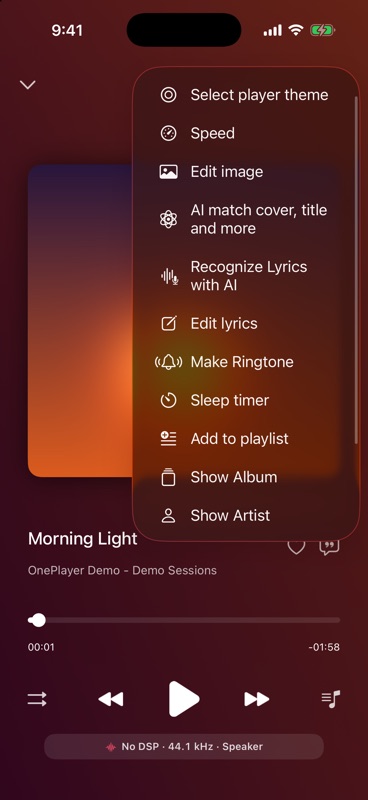
The easiest way for the song you're listening to: on the Now Playing screen, tap … in the top-right corner, then choose Make Ringtone. The selection starts about 2 seconds before the current playback position, so you can grab the part you just heard.
From a song's menu
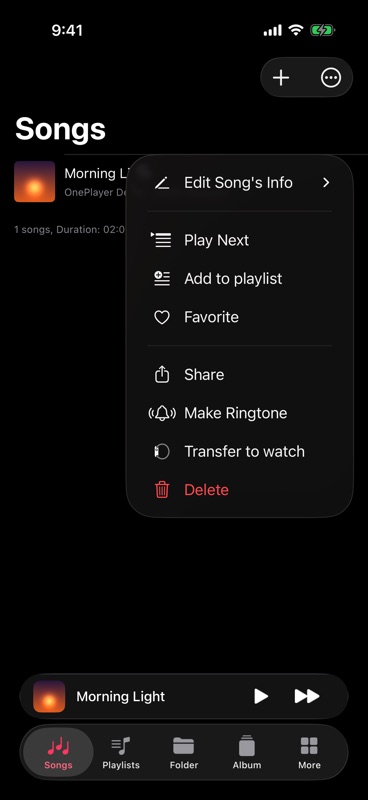
In a song list or a folder, tap … on the right of a song, then choose Make Ringtone. OnePlayer analyzes the whole song and places the 30-second selection on its fullest-sounding part, which is usually the chorus.
Audio or video from Files
No need to import the file into your library first:
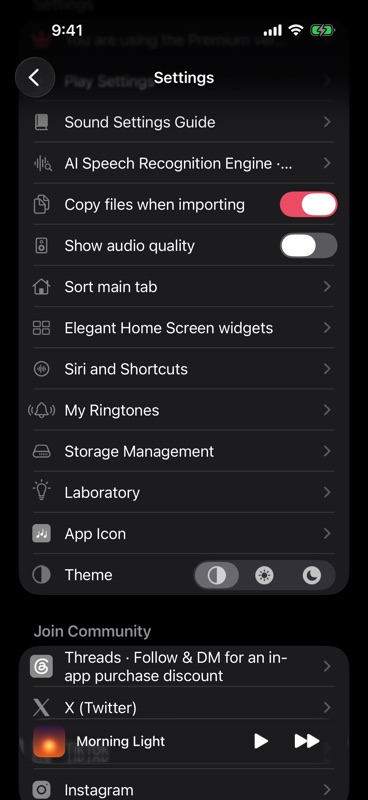
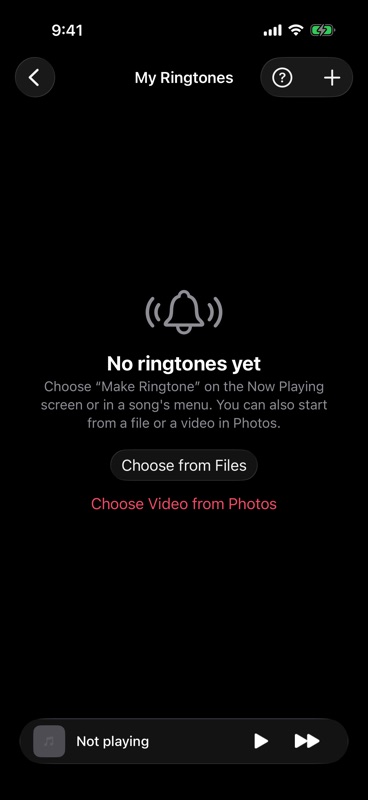
- Open Settings and tap My Ringtones.
- Tap Choose from Files (once you have ringtones, tap + in the top-right corner).
- Pick an audio or video file to open it in the editor.
A video from Photos
Your kid's laugh, your pet's call or a moment from a live show can all become a ringtone:
- In My Ringtones, tap Choose Video from Photos (or + in the top-right corner → Choose Video from Photos).
- Pick a video. This uses the system photo picker, so no photo library permission is needed.
- The editor shows "Loading video…" with its progress. Videos stored only in iCloud are downloaded first; close the editor to cancel.
Only the sound is taken from the video; the picture isn't saved. If the video has no sound, you'll see "This video has no sound."
3. Pick the Part
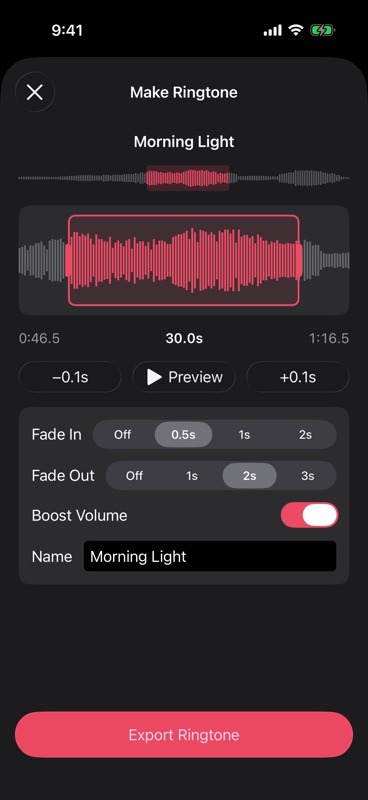
The middle of the editor shows a detailed waveform of the current selection, with an overview of the whole song above it:
- Move the start — Drag the waveform left or right. The selection box stays in the middle while the waveform scrolls underneath.
- Change the length — Drag the handles on either side of the selection. A ringtone can be 3 to 30 seconds long.
- Jump around — For long songs, tap a spot on the overview strip to jump straight there.
- Fine-tune — Use the −0.1s / +0.1s buttons to move the start earlier or later.
- Preview — Tap Preview to play the selection; a playhead moves through the box. If you move the start while previewing, playback restarts from the new position.
The start, length and end of the selection are shown below it. Music that's playing pauses when the editor opens, and resumes automatically when you close it, as long as the same song is still current.
4. Fades, Volume and Name
- Fade In — Off / 0.5s / 1s / 2s. The default is 0.5s.
- Fade Out — Off / 1s / 2s / 3s. The default is 2s. Ringtones loop, so a little fade keeps each round from starting or ending abruptly.
- Boost Volume — On by default. Raises the whole clip to a comfortable level (by up to 12 dB). It only makes the clip louder without compressing it, and never clips or distorts. Especially useful for quiet audio like classical music and live recordings.
- Name — Defaults to the song title. Videos from the camera (such as
IMG_1234) are named "Video Ringtone". This is the name you'll see in the system ringtone list later, and you can change it freely: up to 60 characters, with symbols such as/ \ : ? * " < > |removed.
5. Export and Set as Ringtone
- Tap Export Ringtone. Local songs are usually done in under a second.
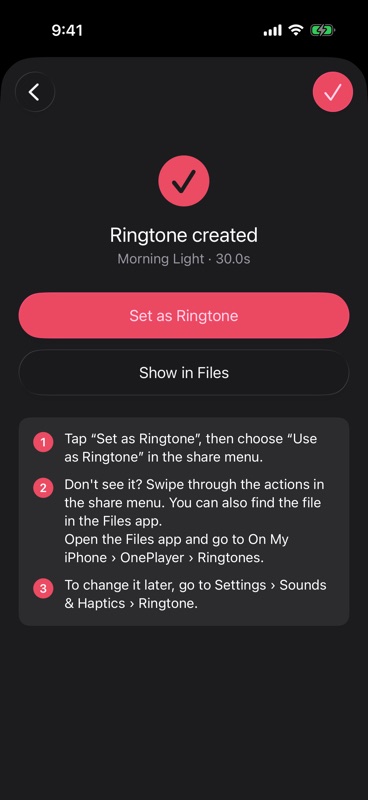
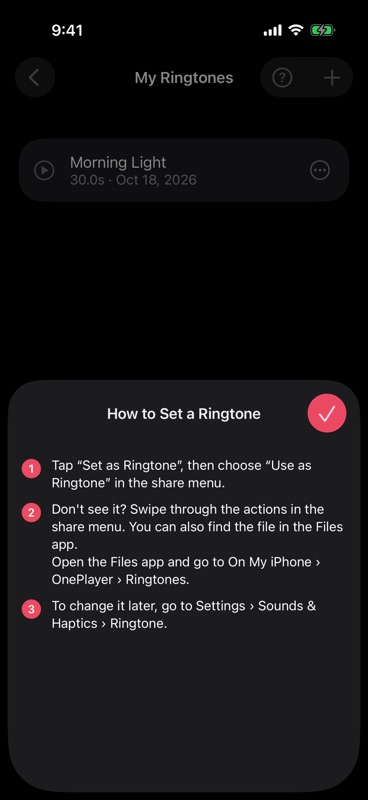
- On the "Ringtone created" screen, tap Set as Ringtone.
- In the share menu that appears, choose Use as Ringtone.
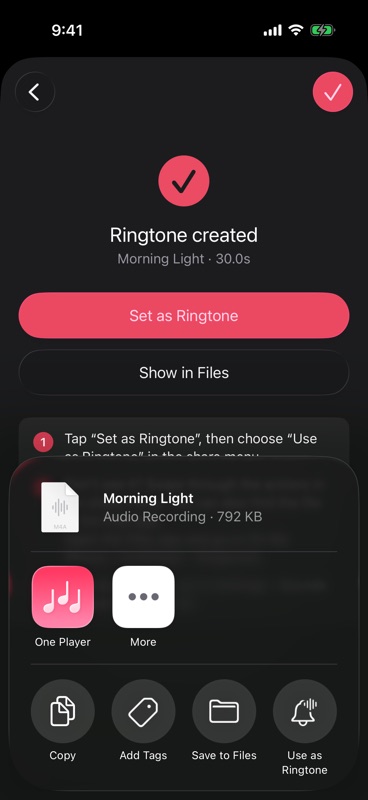
Once you choose Use as Ringtone, it becomes your ringtone.
- Don't see Use as Ringtone? The actions at the bottom of the share menu are a single row; swipe left or right to see more.
- To change your ringtone later, go to Settings › Sounds & Haptics › Ringtone on your iPhone. Your own ringtones and the system ones are all listed there.
- The first time you export, a three-step guide appears. You can open it again from My Ringtones → How to Set a Ringtone.
6. Manage My Ringtones
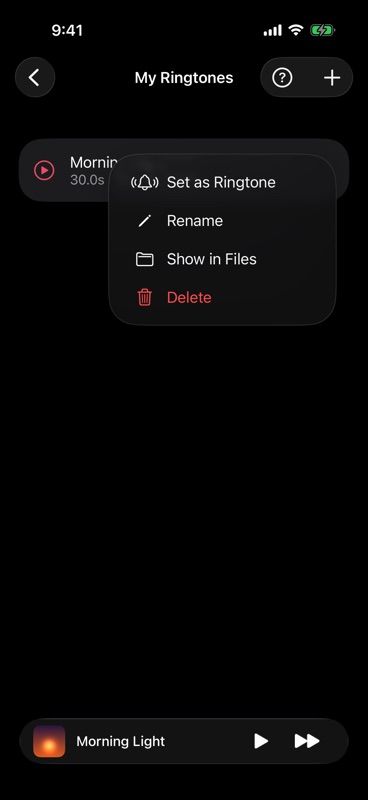
Settings → My Ringtones keeps every ringtone you've made. Each row shows the name, length and date created.
- Preview — Tap a row to play it, and tap again to stop.
- More actions — Tap … on the right of a row to Set as Ringtone, Rename, Show in Files or Delete.
- Delete — You can also swipe left on a row. Deleting only removes the ringtone file from OnePlayer; ringtones already added to your iPhone aren't affected.
Ringtone files are saved in the Files app under On My iPhone › OnePlayer › Ringtones, in M4A (AAC) format. This folder isn't scanned into your library, so ringtones don't get mixed in with your songs.
7. FAQ
I can't find Make Ringtone. Make sure your iPhone is on iOS 26 or later. iPad and Mac aren't supported. The option also doesn't appear in the menu of songs synced from your iTunes / iPod music library.
It says "This audio is too short to make a ringtone." A ringtone needs at least 3 seconds. Please choose longer audio.
It says "This video has no sound." The video has no audio track. Please choose a video with sound.
It says "Not enough storage space to save the ringtone." Free up some storage on your iPhone and try again.
I made a ringtone with the same name, and "(2)" was added to it. iOS decides whether a ringtone is a duplicate by its name, and a ringtone with the same name can't be added again. So when a name has already been used, OnePlayer adds "(2)", "(3)" and so on. You can also rename it yourself before exporting.
I deleted a ringtone in OnePlayer, but it's still on my iPhone. That's expected. When you set a ringtone, the system keeps its own copy, so deleting the file in OnePlayer doesn't affect it. To switch to a different ringtone, go to Settings › Sounds & Haptics › Ringtone on your iPhone.