
EQ, preamp gain and advanced filters
EQ, preamp gain and advanced filters
Sound Center puts EQ, preamp gain, and advanced filters on the same page. EQ is good for shaping the overall sound, and advanced filters are used to limit or attenuate certain frequencies more specifically.
This article belongs to OnePlayer 5.0 Function Collection.
Open settings
- Play a song.
- Tap the play page sound capsule.
- Enter "EQ and Gain".
- Open the module you want to use.
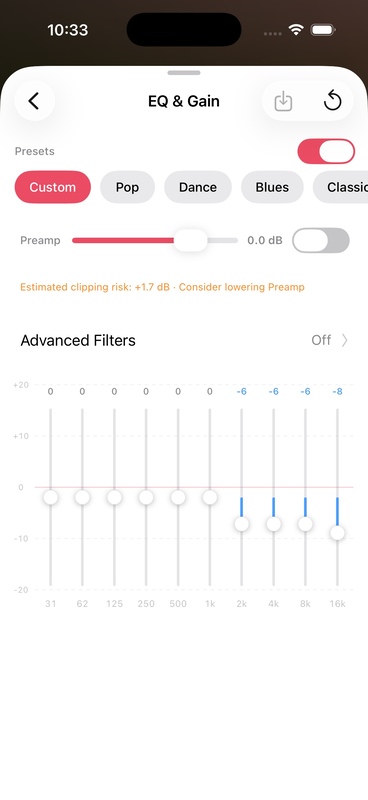
Use EQ presets
When using it for the first time, it is recommended to select a preset first, and then fine-tune it according to the headset and listening experience:
- Turn on EQ.
- Choose a preset that is close to your target.
- Play a familiar clip.
- Make small adjustments to adjacent frequency bands to avoid boosting too much at once.
If multiple frequency bands are significantly boosted at the same time, the peak value after superimposition may exceed the upper limit of digital audio, and the sound will sound hard or cracked. At this time, the preamplifier gain should be reduced.
Preamp gain and automatic margin
Preamp gain uniformly adjusts levels before going into EQ and other processing.
- Negative Gain: Reserve space for subsequent frequency band improvements, which is a safer and common method.
- Positive Gain: Will increase the overall level and make clipping more likely.
- Auto margin: Automatically reserve space based on the current EQ boost amount, suitable for users who don’t want to manually calculate.
Advanced filters
OnePlayer supports four filters:
- High Pass: Attenuate low frequencies below the cutoff frequency.
- Low Pass: Attenuates high frequencies above the cutoff frequency.
- Bandpass: Only keep the range near the center frequency.
- Notch: Attenuate a very narrow frequency band.
Usage steps:
- Turn on advanced filters.
- Add a new filter.
- Select type.
- Set frequency and bandwidth.
- Use the Listen to Original button to determine if there is an improvement.
Changes in bandpass and notch can be significant and it is recommended to start with looser parameters. Daily listening to music usually does not require adding many filters.
Why does the setting not take effect?
The EQ and filters are temporarily bypassed when the following conditions are encountered:
- Direct is in effect.
- DSD is being transmitted over DoP.
- Press and hold to listen to the original sound.
- This processing is not supported by the current mix or output link.
The settings will still be saved and will automatically continue to be used after conditions are restored.