
Automatic discovery of SMB and WebDAV devices
Automatic discovery of SMB and WebDAV devices
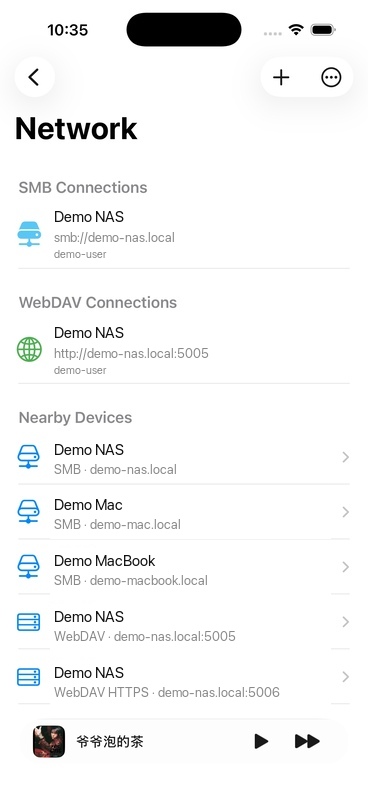
OnePlayer 5.0 can search for SMB and WebDAV services broadcast within the same LAN. Once the device is discovered, a valid account number, password, and directory permissions are still required to access files.
This article belongs to OnePlayer 5.0 Function Collection.
Start search
- Connect iPhone and NAS or computer to the same LAN.
- Open OnePlayer's web page.
- Wait for search results in the "Nearby Devices" area.
- Tap the device to confirm the protocol, address, and port.
- Enter your account and password and save the connection.
First time use requires LAN permissions
iOS displays a permission prompt the first time you allow OnePlayer to search a LAN. Please select Allow. If you have declined before, you can go to:
System Settings → Privacy & Security → Local Network → OnePlayerAfter turning on permissions, return to OnePlayer and search again.
What to do if the device is not found?
Auto-discovery relies on router and server broadcasts, so no results does not mean that the connection cannot be made. You can directly choose to add manually and fill in the server address.
Check in order:
- Whether the iPhone and the server are on the same subnet.
- Whether the router has guest network isolation or AP isolation enabled.
- Whether VPN, proxy or security software blocks LAN traffic.
- Whether the SMB or WebDAV service is started.
- Are the address, port and protocol correct?
How to choose between SMB and WebDAV
- SMB: Commonly used in NAS, Windows shares and macOS file shares, suitable for use on the same LAN.
- WebDAV: Commonly found in NAS, network disk gateways and self-built services, it can also be accessed through HTTPS.
If both protocols are available, give priority to the one with the most stable server configuration and clearest permissions.