
OnePlayer 5.4: Made for iPhone Duo, an all-new iPad interface and music visualizers
This update is all about screens.
iPhone Duo is here, and you can use it closed, unfolded, or half-folded and standing on a table. iPad has always had a big screen that OnePlayer never made the most of. And listeners kept asking for something they remembered from desktop players years ago: a way to see the music move. OnePlayer 5.4 takes on all three.
At a glance
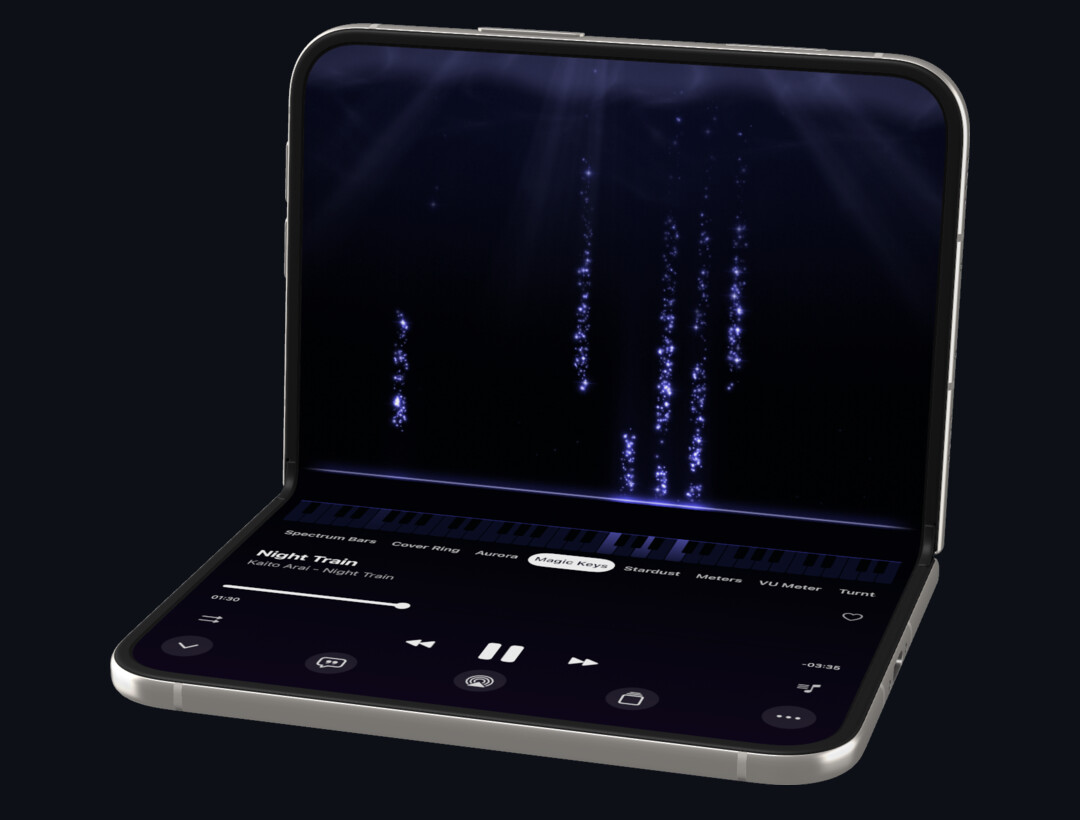
- Made for iPhone Duo: unfolded and held sideways, lists and details sit side by side, and Now Playing shows lyrics or Up Next on the right. Closed, the outer display is a full player. Half-folded on a table, the top half shows a visualizer and the bottom half the controls.
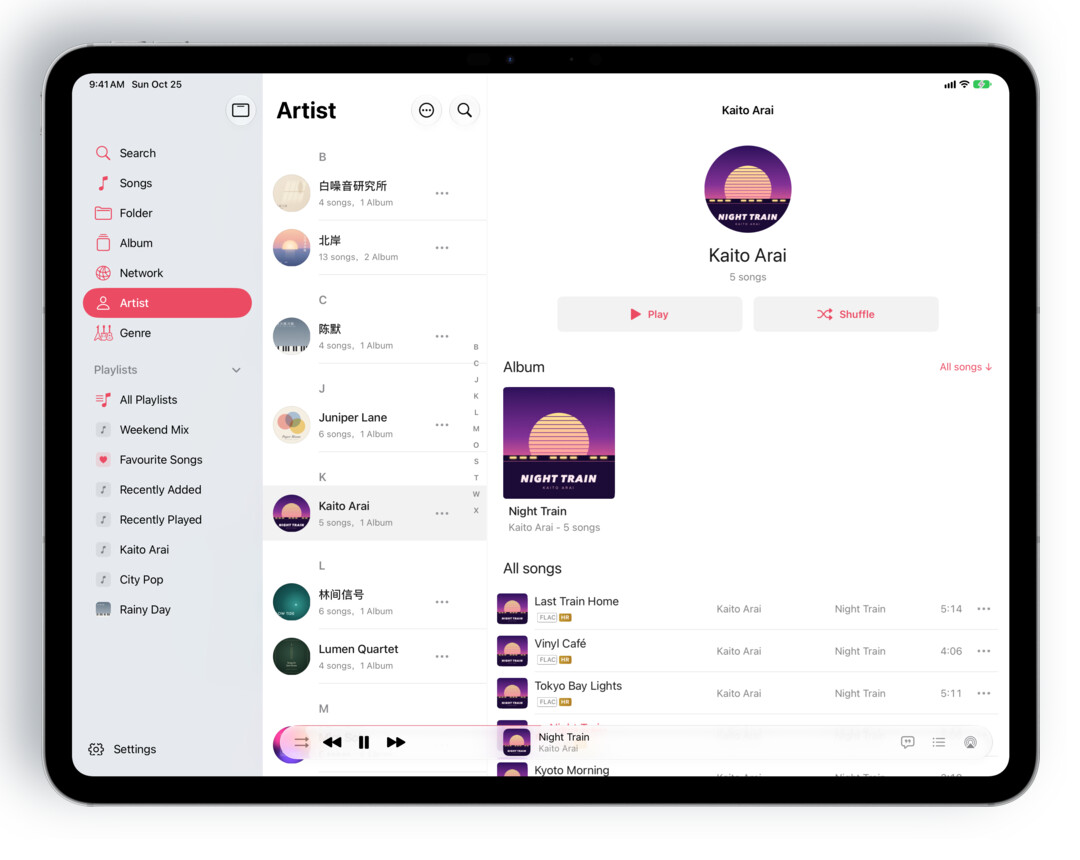
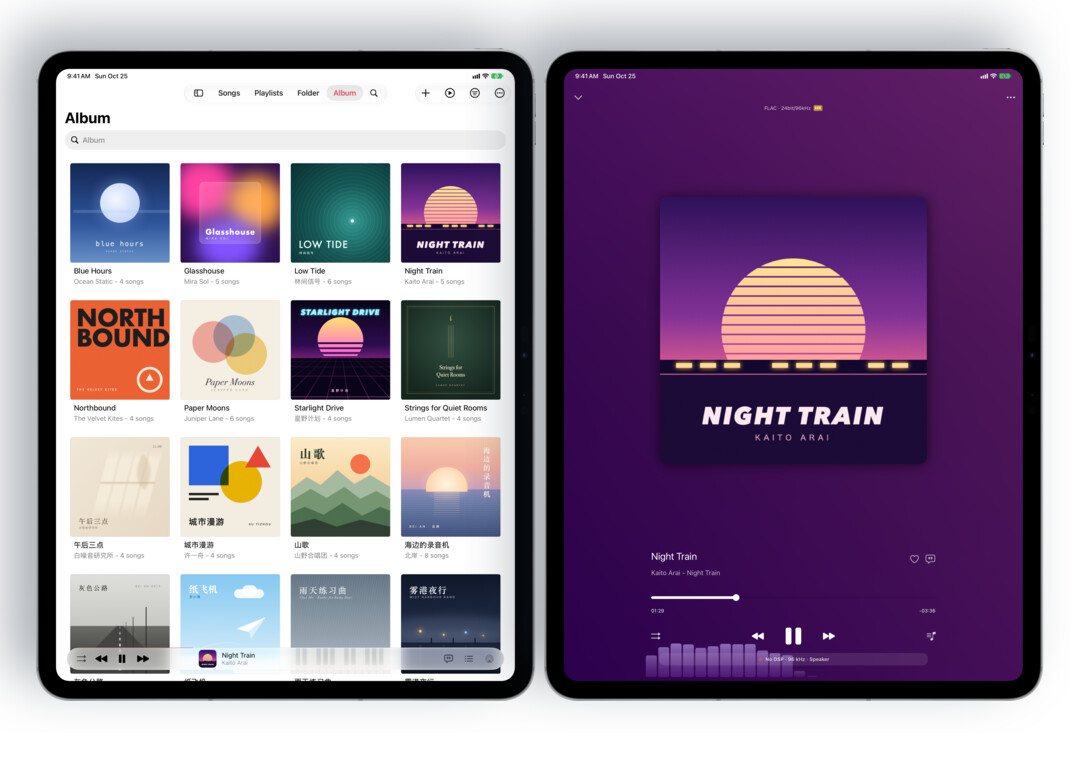
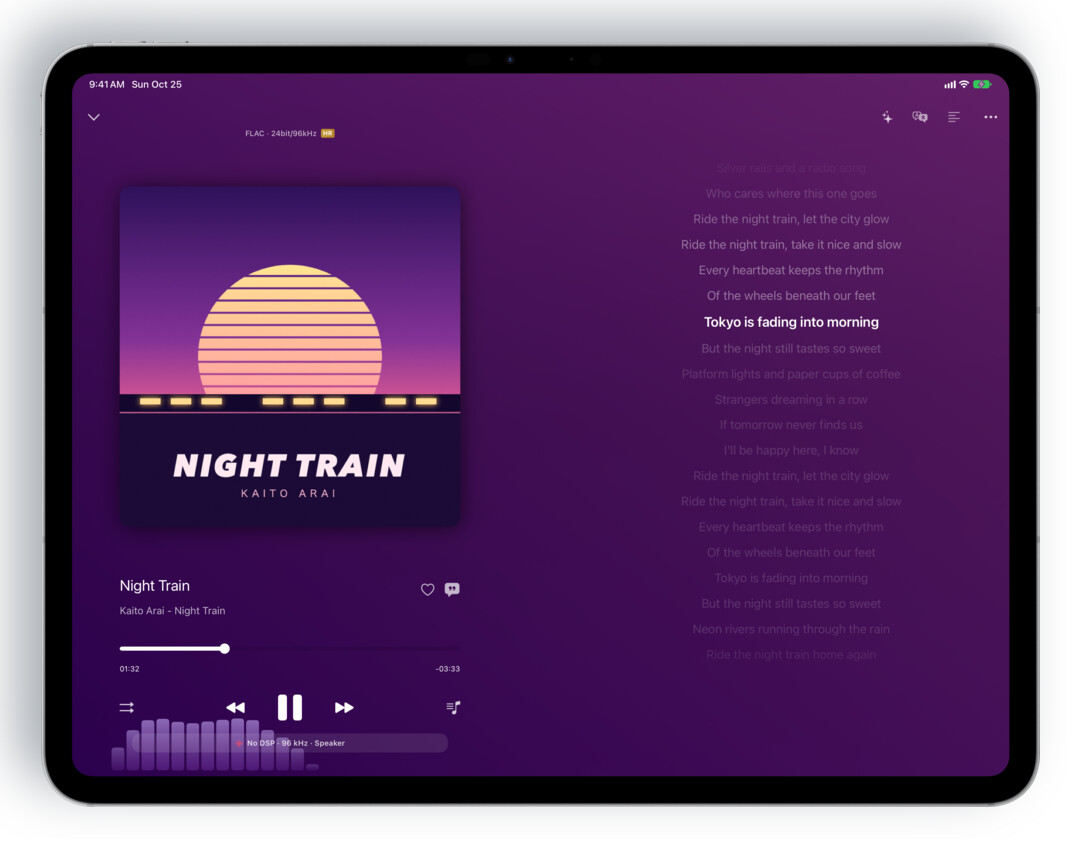
- All-new iPad interface: redesigned after Apple Music on iPad. The sidebar follows your "Sort main tab" setting, Now Playing can show lyrics and Up Next on the right, and multiple windows and window resizing are supported.
- Drag-and-drop import on iPad: drag songs, folders or lyrics files from other apps into OnePlayer to import them.
- Music visualizer: hold iPhone, iPad or the iPhone Duo outer display sideways and Spectrum Bars, Cover Ring, Aurora, Magic Keys, Stardust, VU Meter and more fill the screen, moving with your music. Swipe left or right to switch.
- VU meter player style: backlit stereo needle meters with 3 skins and peak lights. The reference level follows each song's loudness by default.
iPhone Duo: comfortable however you hold it
Closed, iPhone Duo is a compact phone. Unfolded, it is a wide screen. Half-folded, it stands up on its own. OnePlayer 5.4 has a layout for each of these postures.
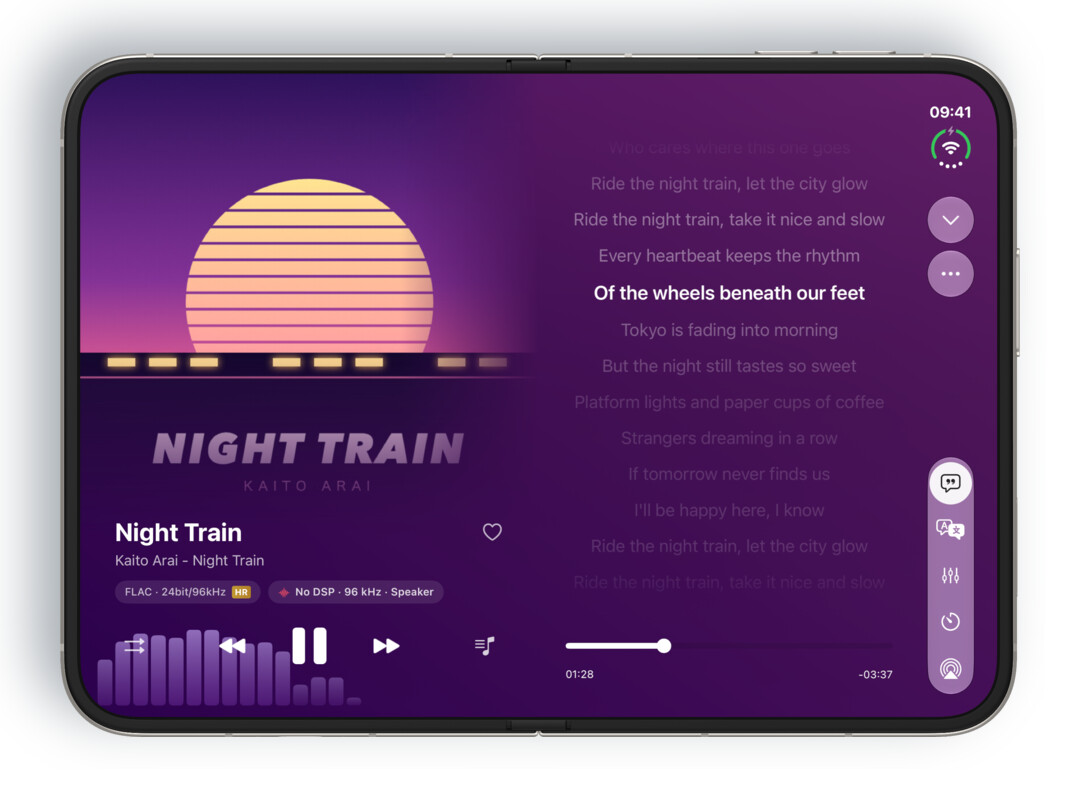
Unfolded and sideways: two pages
Now Playing splits along the fold. The left page has the artwork, the song title and the playback controls; the right page has lyrics that scroll along with the singing, like opening the sleeve of a record.
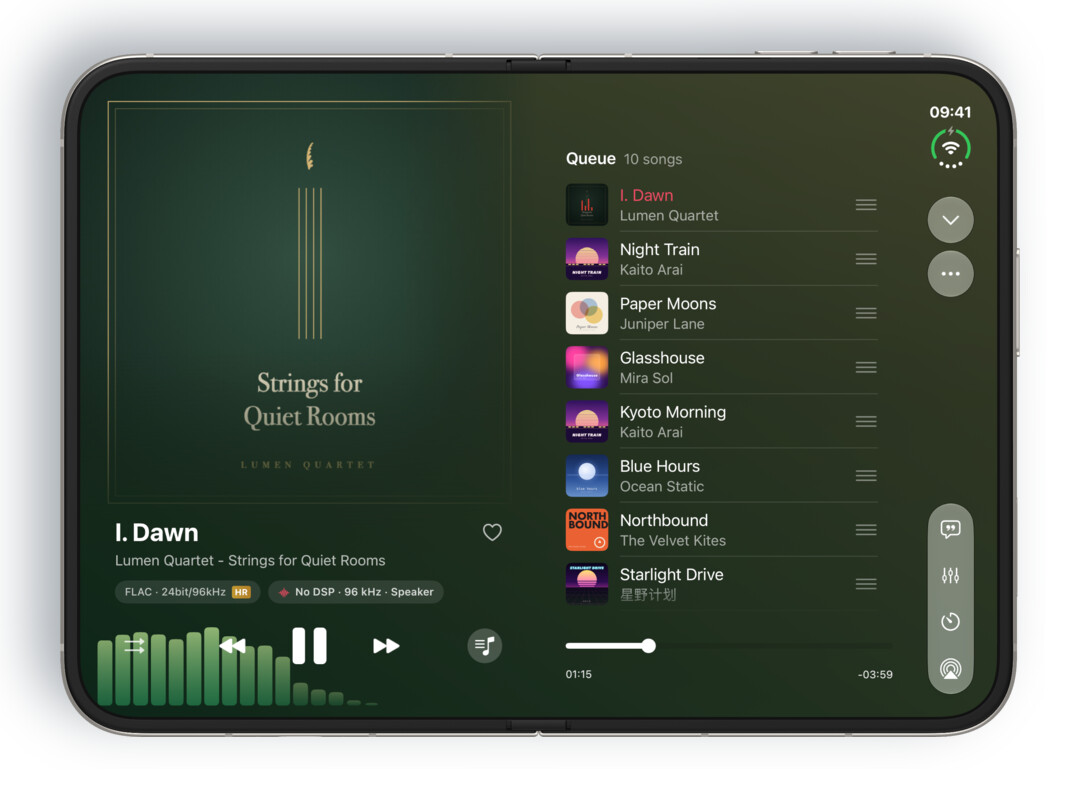
Tap Up Next and the right page shows what plays next. Drag the handles to reorder it.
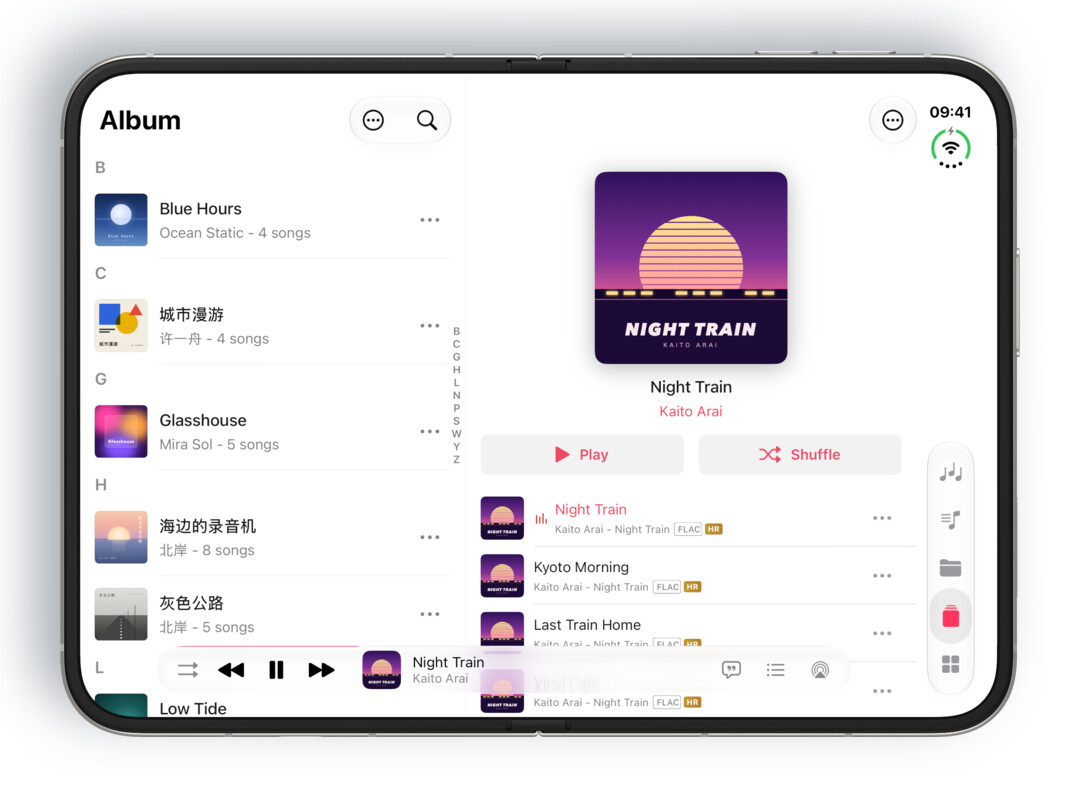
Your library uses two columns too. Albums, playlists, artists, genres and Network show the list on the left and the details on the right, so you never have to go back a level. Songs are laid out in columns for title, artist, album and duration. The mini player at the bottom follows the Apple Music layout, with playback controls, the current song, and the lyrics and Up Next buttons in one row.
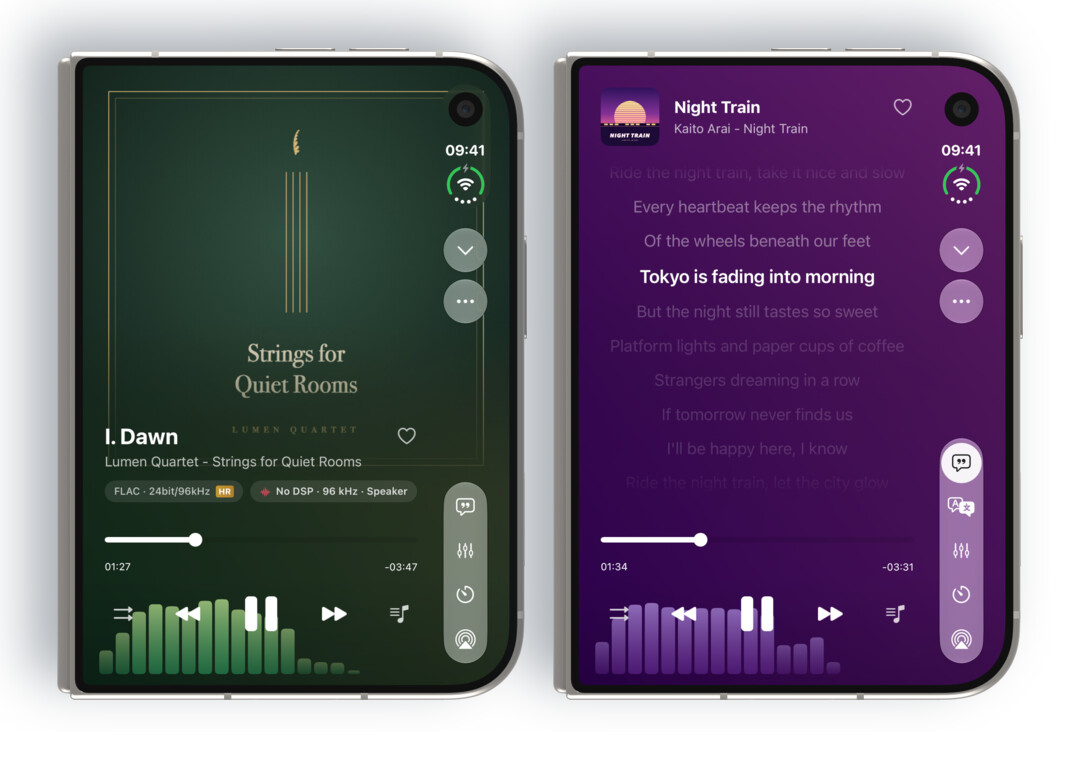
Closed: the outer display is a full player
With Duo closed, the outer display still gives you large artwork, scrolling lyrics, the progress bar and every playback control, and it uses the system button column on the right.
Half-folded on a table: watch above, control below
Fold Duo partway and stand it on a table. The top half fills with a visualizer, and the bottom half holds the controls: a row of visualizer names you can tap to switch, then the song title, progress, previous, play and next, and the lyrics, output and Up Next buttons.
Outer display sideways: the whole screen moves
Turn a closed Duo sideways and the outer display can fill with a visualizer too. Stand it on a desk and it becomes a small screen that moves with the music.
An all-new iPad interface
The iPad app has been rebuilt from the ground up, and it now works like Apple Music on iPad.
A sidebar for the places you use most
In landscape, the sidebar sits on the left: Search at the top, then the pages you use most, then all of your playlists, with Settings pinned at the bottom. Which pages appear, and in what order, follows your "Sort main tab" setting. In portrait, navigation moves to a tab bar at the top so the content gets the full width.
Now Playing: lyrics and Up Next alongside
Now Playing shows the artwork and controls on the left, and lyrics that scroll line by line on the right. Tap Up Next and the same column shows what plays next.
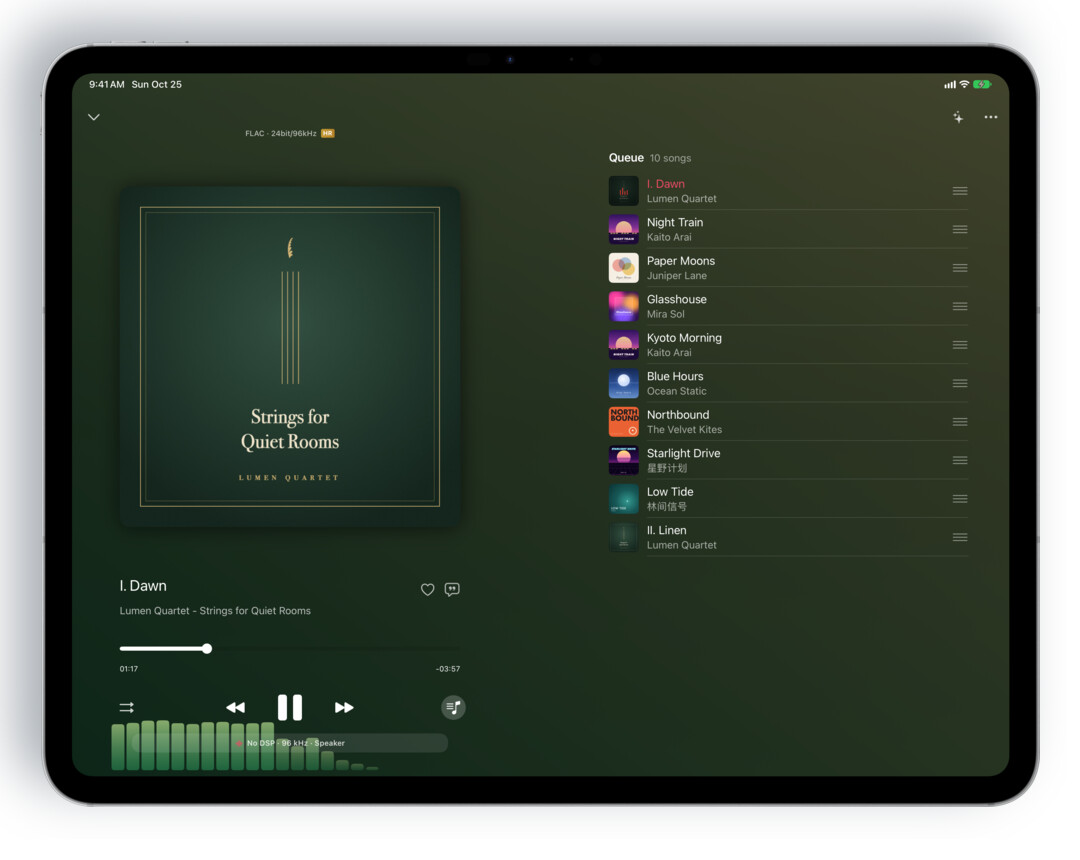
Multiple windows, any size
You can open several OnePlayer windows at once and resize them freely. When a window gets narrow, OnePlayer switches to an iPhone-style tab bar; widen it again and the sidebar comes back.
Drag in to import
Drag songs, whole folders or lyrics files into OnePlayer from the Files app or another app to import them:
- Onto a folder in OnePlayer's Files page: they go into that folder.
- Onto a playlist: they are imported and added to that playlist.
- Anywhere else: they go into your library, like any other import.
The new sidebar requires iPadOS 18 or later.
Music visualizer: see your music
If you remember the bouncing spectrum bars in the desktop players of the 2000s, this one is for you. Version 5.4 adds nine visualizers. They analyze the sound as it plays, so drums, voices and melodies all turn into light on the screen.
- iPhone and iPad: turn the device sideways on the Now Playing screen.
- iPhone Duo: turn the outer display sideways while closed, or stand Duo half-folded on a table.
In landscape, Now Playing has a Visualizer button (✦). Tap it and a row of live previews appears at the bottom; pick one to fill the screen. You can also swipe left or right on the picture to switch. The controls hide after a few seconds; tap the picture to bring them back.
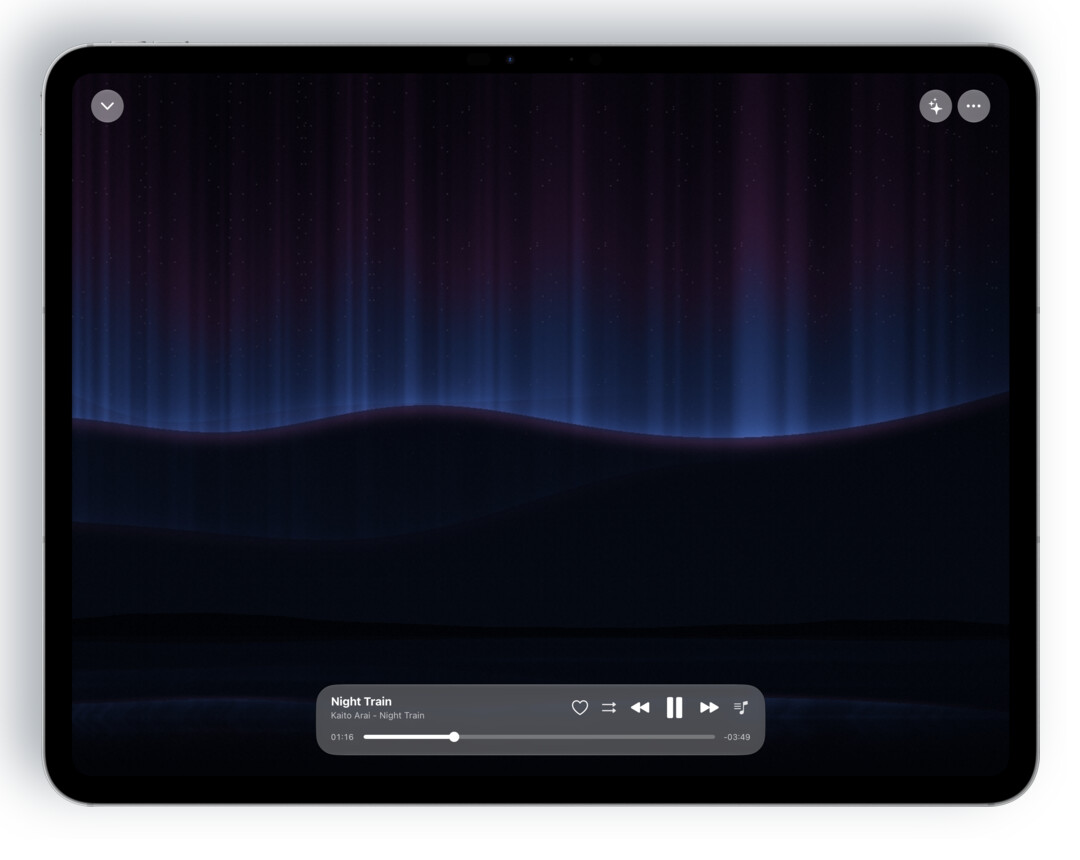
Each of these was drawn live by OnePlayer from the same song.
Spectrum Bars: 64 bands, with peak markers that drift back down.
Cover Ring: the artwork sits inside a ring of light that pulses with the music. Turn on lyrics and the current and next lines appear beside it.
Aurora: an aurora rises and falls above distant hills and reflects on the water, its colors shifting slightly with the artwork.
Magic Keys: keys light up with the melody, and sparks drift up from each lit key.
Stardust: the artwork becomes more than two thousand points of light that rise into a landscape of the spectrum, and strong beats throw them outward.
VU Meter: two classic needle meters, one for each channel.
Meters: loudness (LUFS), peak level and stereo phase on one screen.
There are also Turntable (a spinning record with lyrics) and Cover & Lyrics. Cover & Lyrics is free for everyone; the other visualizers are Premium features, and you can try each one for 10 seconds before upgrading.
For more details, see the music visualizer guide.
VU meter: the needles from a classic hi-fi
If you love the meters on an old amplifier, choose VU Meter in Now Playing → "…" → "Select player theme".
- Backlit stereo needle meters: with peak lights and 3 skins, Warm Amber, Midnight Blue and Reel Silver.
- Automatic reference level by default: it follows each song's loudness, so loud pop masters no longer pin the needle in the red. You can also choose a fixed −14, −18 or −20 dBFS.
- Two indicator types: VU and PPM, under "Indicator".
Adjust all of these in Now Playing → "…" → "VU Meter Settings".
Things to try after updating
- Play a song you love, turn your phone sideways, tap ✦ and swipe through until you find your favorite visualizer.
- If you have iPhone Duo, stand it half-folded on your desk and let it keep you company while you listen.
- On iPad, drag a whole folder from the Files app into OnePlayer.
- Switch the player style to VU Meter, play a song with wide dynamics and watch the needles.
Starting with 5.4, OnePlayer requires iOS 15 or later, and the Apple Watch app requires watchOS 9 or later.
Screenshots and visualizer clips were captured in the iPhone Duo and 13-inch iPad Pro simulators. The songs, artwork and lyrics are sample content we made ourselves.