
OnePlayer 5.2: Lyrics that float, songs that flow
We rarely just stare at the player while listening. You reply to messages, read, take notes, and the music keeps playing, but the lyrics stay behind in the app. And when one song ends, there is often a wait before the next begins.
OnePlayer 5.2 is about continuity: your lyrics can follow you out of the player, and songs can flow into each other with gapless playback or a crossfade.
At a glance
- Floating lyrics: follow the lyrics while using other apps, with single- or double-line display, word-by-word highlighting, customizable size, fonts and colors, and automatic colors from album artwork.
- Track transitions: gapless playback and crossfade, with a fade duration adjustable from 1 to 12 seconds.
- Silence trimming: optionally trim silence at the start and end of songs during gapless playback.
- Lyrics editing: a dedicated full-text editor, better timestamp checks and validation when saving embedded lyrics.
- Playback stability: improved stability and fixes for some audio engine startup issues.
Floating lyrics: leave the player, keep the lyrics
With Floating Lyrics turned on, switch to another app or go to the Home Screen while music is playing, and the lyrics appear in a small floating window. Return to OnePlayer and the window tucks away automatically. There is no need to open it by hand each time.
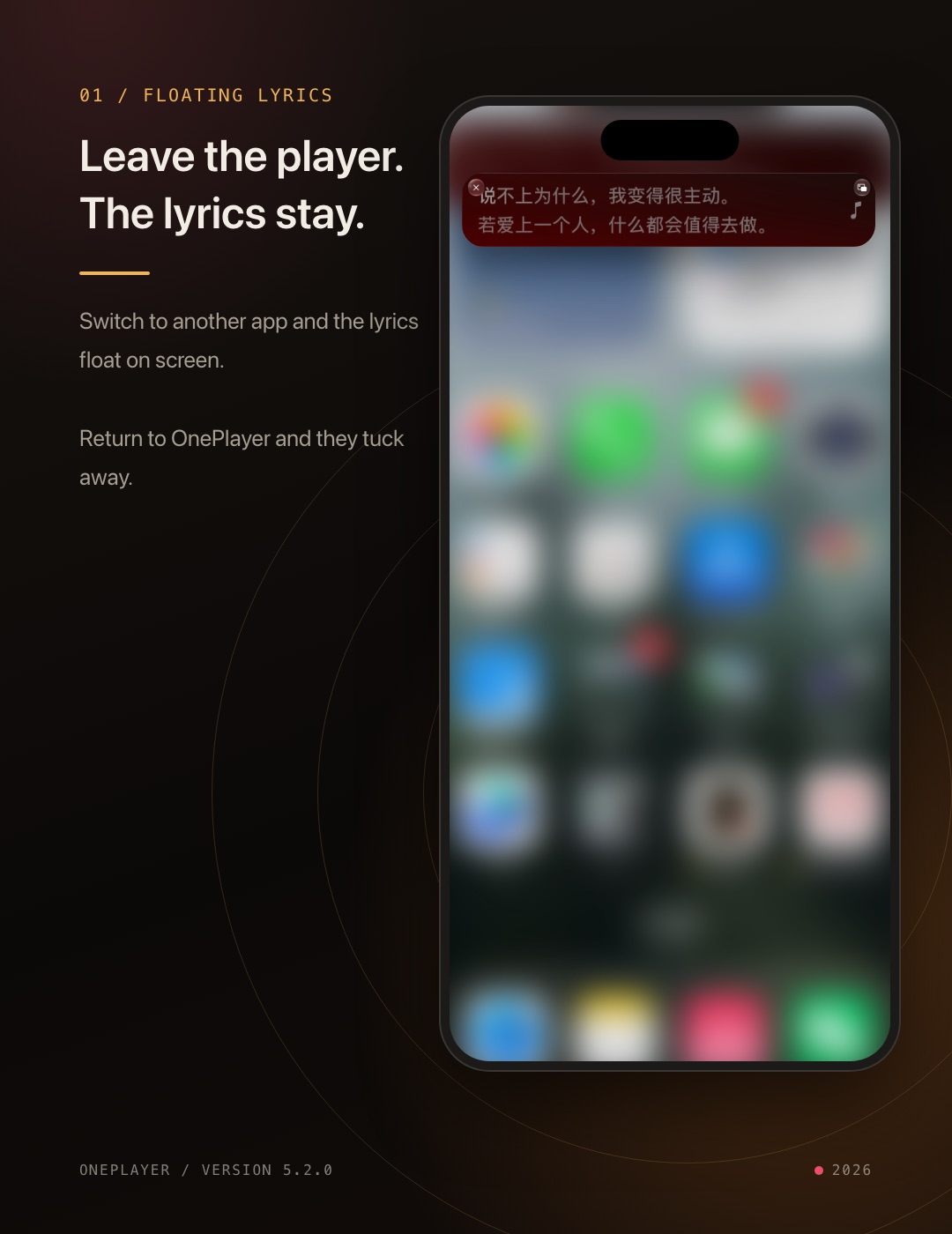
You can make the window your own:
- Single or double line: one line keeps it minimal; two lines show what comes next, and double-line mode can also show the song title.
- Window size: Small, Standard or Large.
- Font: Standard, Rounded or Serif.
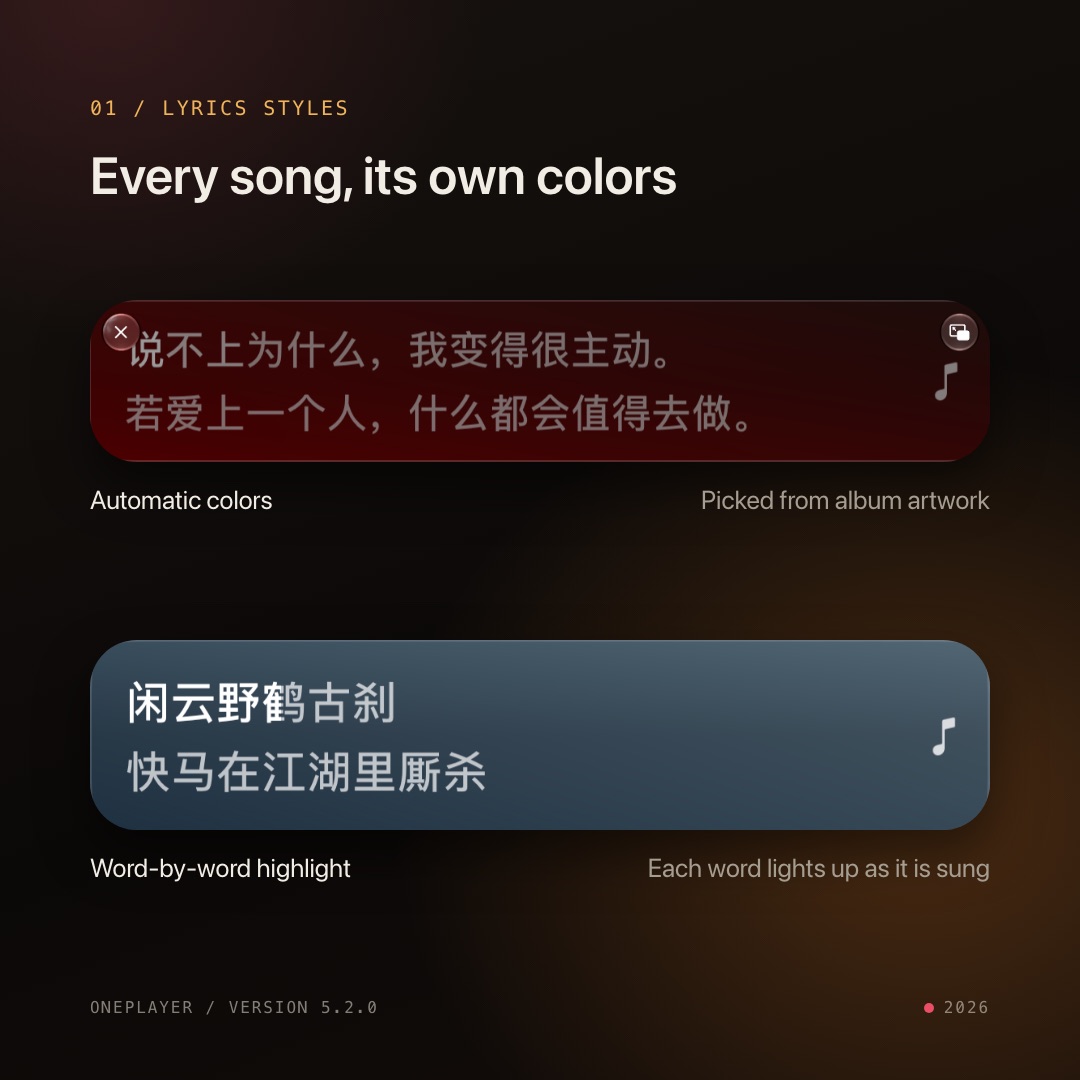
- Color: six preset colors. Turn on Auto to pick colors from the current album artwork when available, so every song gets its own look.
- Word-by-word highlighting: when lyrics include word-level timing, each word lights up as it is sung.
Tap the lyrics in the window to bring up Previous, Play/Pause and Next controls, so you can control playback without switching back.
To turn it on: open OnePlayer's Settings, go to "Play Settings" → "Floating Lyrics", turn on the switch, then start playing a song.
A few notes:
- Floating lyrics use iOS Picture in Picture, so your device must support it. Whether the window can start automatically is ultimately decided by the system.
- A song needs to be playing; the window does not start while playback is paused.
- Floating Lyrics is a Premium feature. Without Premium, you can still preview and adjust the style in Settings, and you will be prompted to upgrade when turning it on.
Track transitions: one song into the next
In Settings → "Play Settings" → "Track Transitions", choose from three modes:
- Off (Normal Switching): the next song starts after the current one ends.
- Gapless Playback: songs are joined directly while keeping their own original pauses. Ideal for live albums, classical movements and continuous mixes.
- Crossfade: the current song fades out as the next fades in. Set the fade duration from 1 to 12 seconds; great for shuffle and playlists.
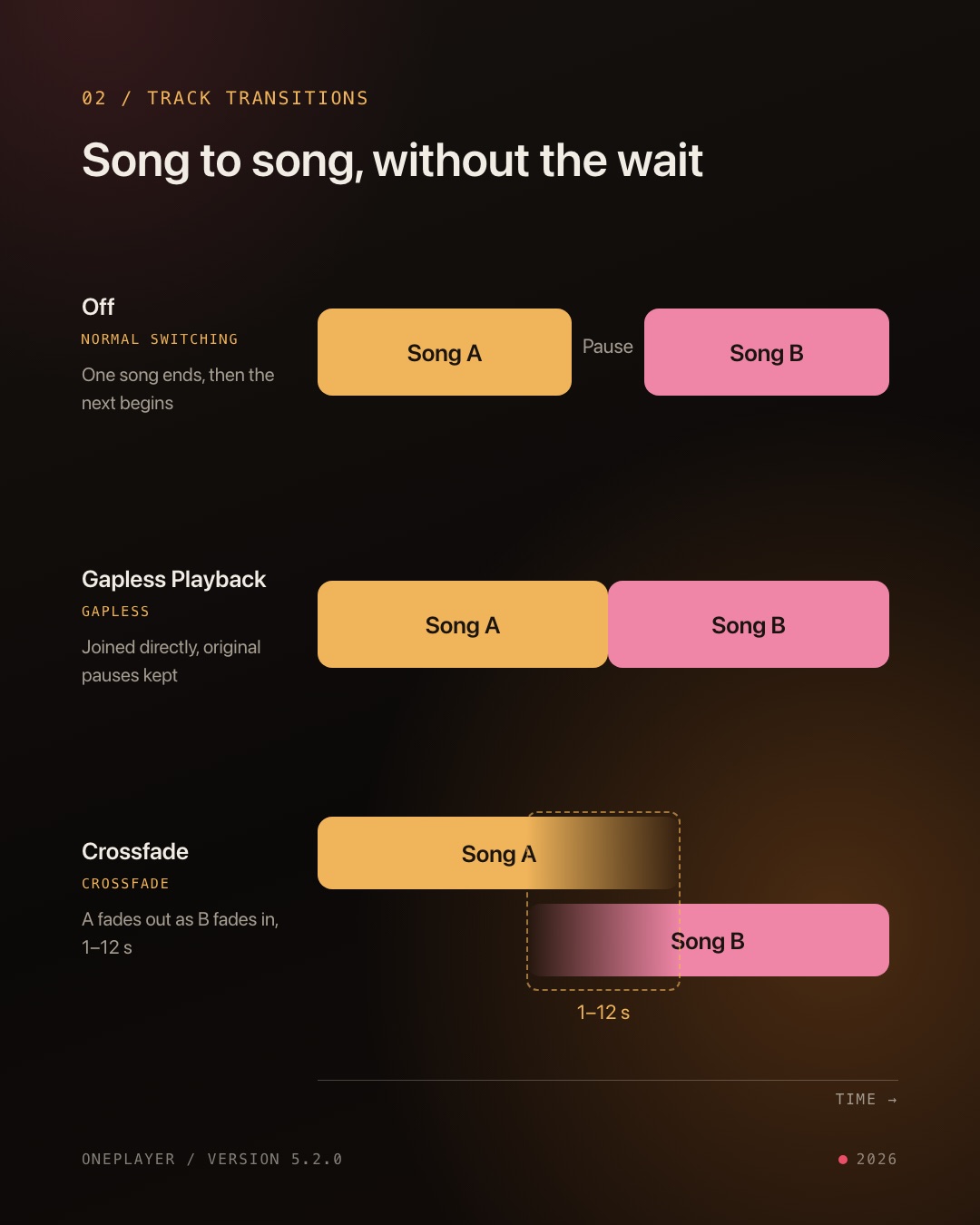
With crossfade, you can turn on "Keep Consecutive Album Tracks Gapless". When two songs come from the same album with consecutive track numbers, OnePlayer uses gapless playback instead, so the album's intended transitions are not faded away.
Good to know:
- Transitions apply only when a song ends naturally. Manual skipping, single-song repeat, intro/outro skipping and stopping after the current song use normal switching.
- DoP output and changes that require reconfiguring audio output do not support these transitions. If the next song is not buffered in time or the output is limited, OnePlayer falls back to normal switching and keeps your saved choice.
- Crossfade mixes the audio of two songs, so it does not preserve bit-perfect output.
- Gapless playback and crossfade require Premium.
Silence trimming: no more dead air
Some songs carry silence at the start or end, leaving a noticeable gap even with gapless playback. With Gapless Playback selected, you can turn on "Trim Start and End Silence":
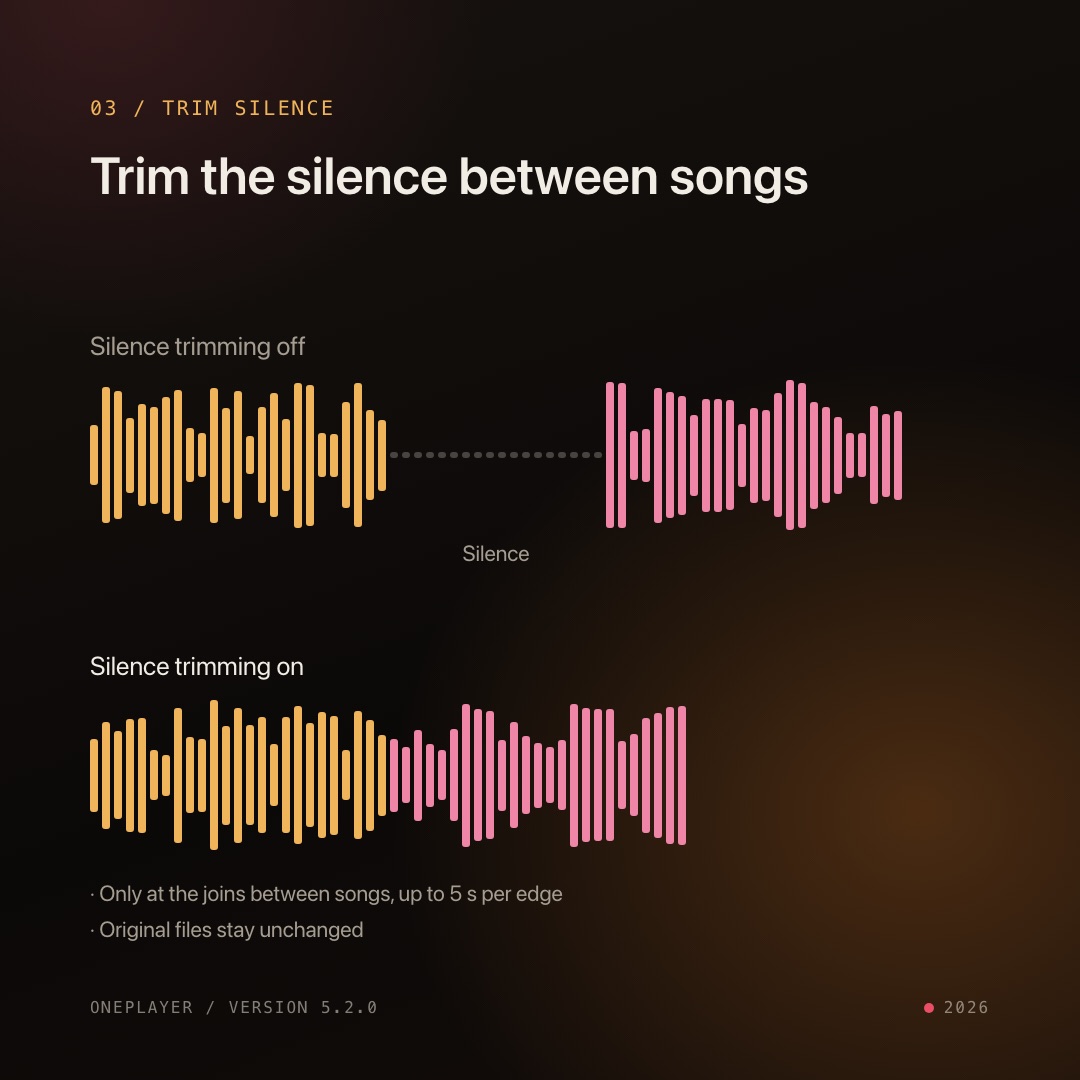
- Only the joins between songs are processed, up to 5 seconds at each edge. Pauses within a song are unchanged.
- Trimming happens during playback; your original files are never modified.
- Trimming may change a recording's original pauses, and quiet music or reverb tails can also be affected. If detection or buffering is insufficient, the original audio is kept.
- Crossfade never uses this option.
Easier lyrics editing
5.2 adds a dedicated full-text editor, so you can edit an entire song's lyrics on one page. Timestamps are checked before saving, and any problem is reported with its line number. Saving embedded lyrics is now validated as well, reducing write errors.
Tap the lyrics on the player page and choose "Edit lyrics" to get started. If a song has no lyrics yet, you can generate synced lyrics with AI speech recognition first, then fine-tune them by hand.
More stable playback
This update also improves playback stability and fixes some audio engine startup issues.
Things to try after updating
- Turn on "Floating Lyrics" in "Play Settings", play a song, then switch to another app.
- Set the color to "Auto" and play a few songs with different artwork to see the colors change.
- Choose Crossfade in "Track Transitions". Start with 4–6 seconds and adjust to taste.
- Play a live or classical album with Gapless Playback and listen to how the tracks connect.
We hope 5.2 keeps your music flowing, whether you are switching apps or moving from one song to the next.