OnePlayer 5.3: Turn your favorite music into an iPhone ringtone
Everyone's library has a few seconds of music they never tire of: a chorus, an intro, or a sound you recorded at a show yourself. Turning that into a ringtone used to mean reaching for a computer or juggling several apps.
OnePlayer 5.3 brings it into the player: pick a section, set the fades, and make it your iPhone ringtone. This update also lets floating lyrics show the original and the translation together, and improves lyrics sync when playing over AirPlay or Bluetooth.
At a glance
- Make Ringtone (iOS 26 and later): trim up to 30 seconds from a song, an audio file or a video you shot, add fade in and fade out, boost the volume, then set it as your iPhone ringtone.
- Translations in floating lyrics: in two-line mode, lyrics that have a translation now show the original and the translation together.
- More accurate lyrics sync: lyrics stay in time with the sound when playing over AirPlay, Bluetooth and other devices.
Make Ringtone: a few seconds of your music
Where to start
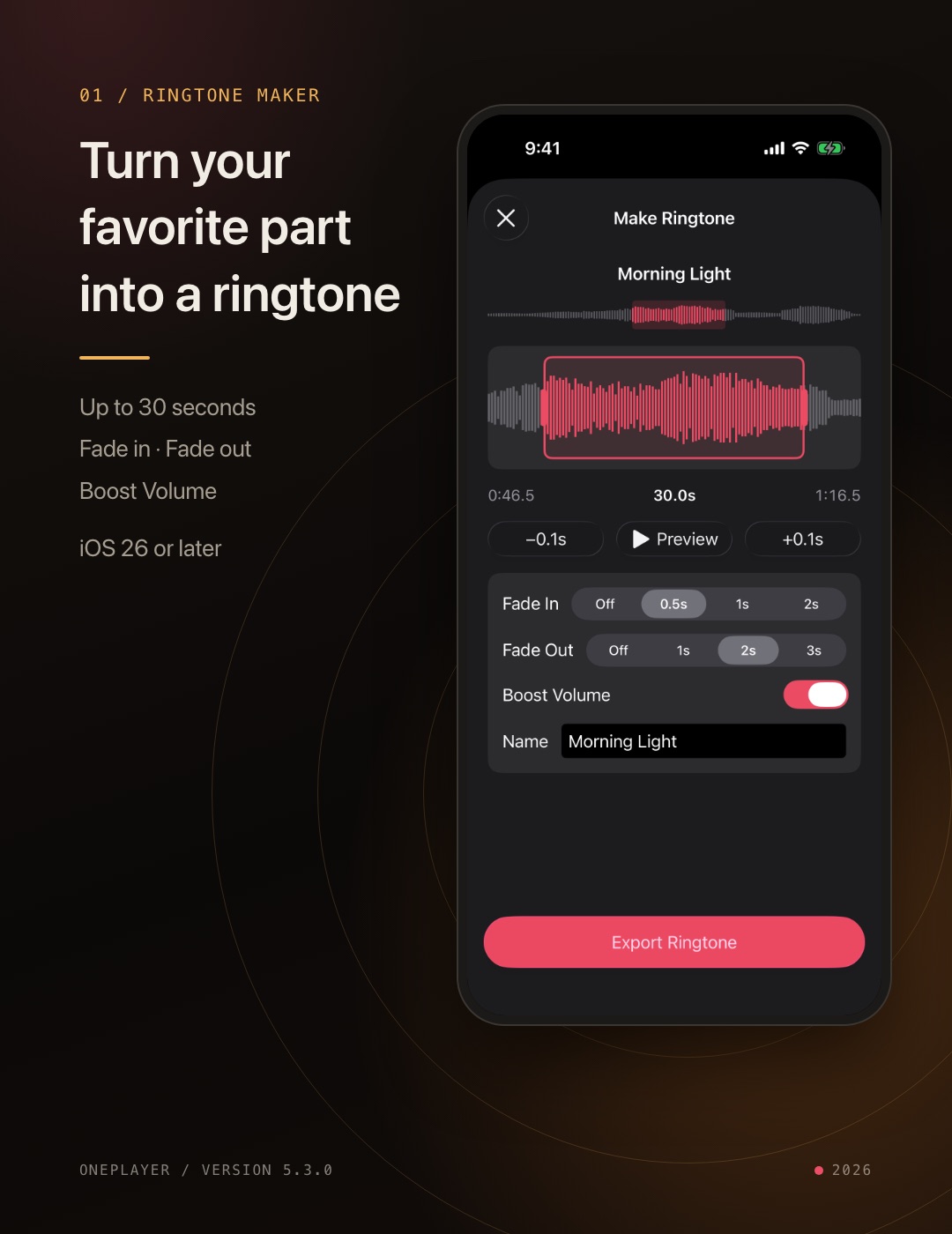
- Player page: tap the "…" button → "Make Ringtone". The selection starts just before the current playback position, so you can capture the moment you are hearing.
- Song menu: in a song list or folder, tap "…" next to a song → "Make Ringtone". OnePlayer automatically places the selection on the strongest part of the song, usually the chorus.
- My Ringtones: in Settings → "My Ringtones", use "Choose from Files" to pick an audio or video file, or "Choose Video from Photos", without importing anything into your library first. Choosing from Photos does not require photo library access.
Songs on a NAS connected over SMB or WebDAV work too, and making a ringtone never modifies the original file.
Pick your section
- Drag the waveform to move the start point, and drag the handles on either side to change the length. A ringtone can be 3 to 30 seconds long.
- For long songs, use the overview bar above to jump to the part you want. For precise alignment, nudge the start point earlier or later with the buttons.
- Tap "Preview" at any time. After you move the start point, playback restarts from the new position.
Make it sound right
- Fade In and Fade Out: ringtones loop, so a short fade keeps each repeat from starting or ending abruptly.
- Boost Volume: on by default. Some classical and live recordings are quiet and easy to miss as a ringtone. Boost Volume raises the whole section to a suitable level without clipping.
- Name: defaults to the song title, and you can change it to anything you like. This is the name you will see in the system ringtone list.
Your videos can become ringtones too
A child's laugh, your pet's meow, the best moment of a live show: take the sound straight from a video you shot and turn it into a ringtone. Only the audio is used and the picture is not kept. If the video has no sound, OnePlayer lets you know.
Set as Ringtone in one go
Tap "Export Ringtone". When the ringtone is ready, tap "Set as Ringtone", then choose "Use as Ringtone" in the share menu, and it becomes your phone ringtone.
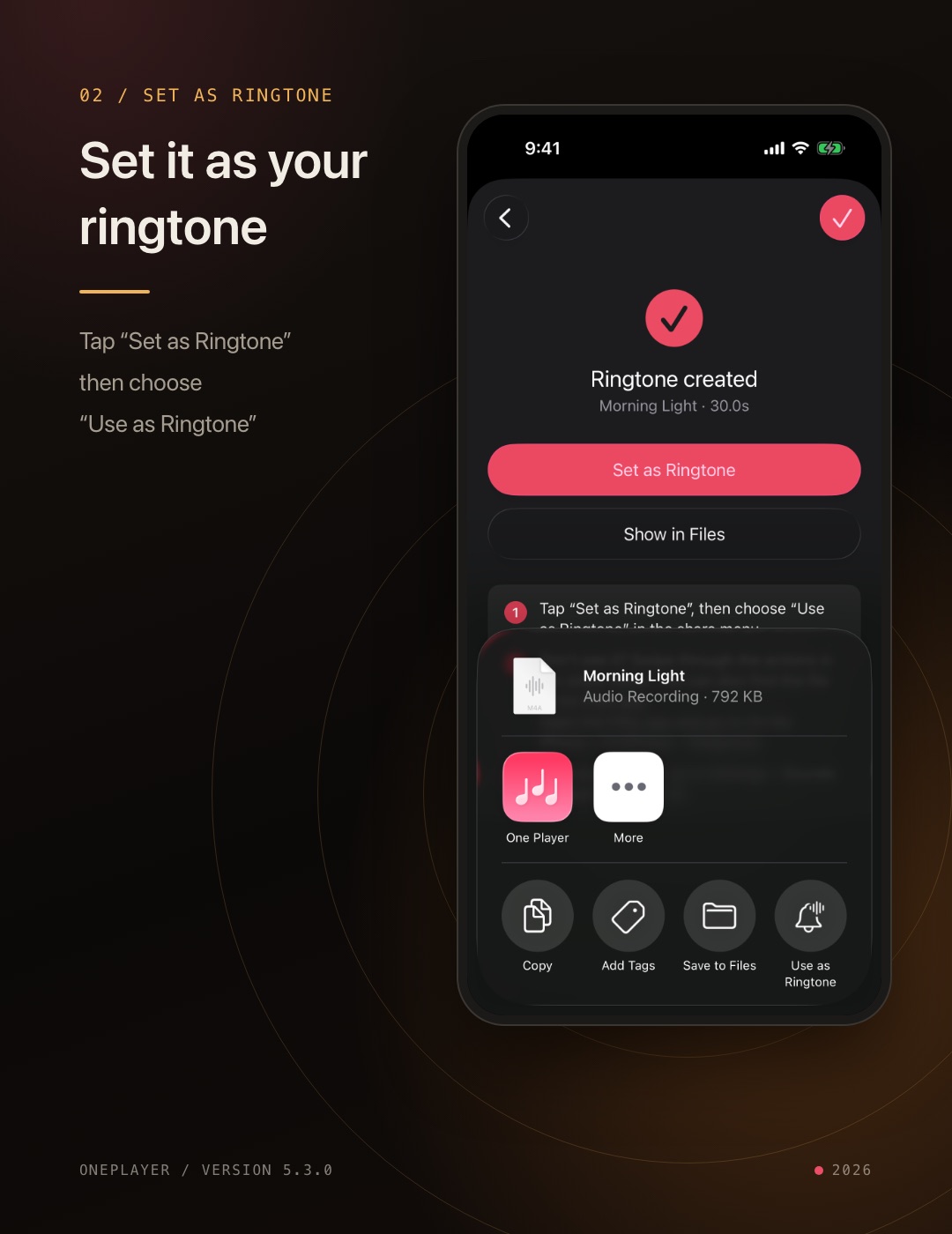
- Don't see "Use as Ringtone"? Swipe through the row of actions in the share menu.
- To switch to a different ringtone later, go to Settings › Sounds & Haptics › Ringtone.
- All your ringtones are kept in "My Ringtones", where you can preview, rename, show them in Files or delete them. Deleting a ringtone file from OnePlayer doesn't affect ringtones already added to your iPhone.
A few notes:
- Make Ringtone requires iOS 26 or later and is currently available on iPhone only.
- Please use audio you have the rights to use, such as your own music files and videos you shot.
For step-by-step instructions and answers to common questions, see the ringtone guide.
Floating lyrics: original and translation together
When you listen to a song in another language, you often want to know what a line means. Starting with 5.3, when floating lyrics are in two-line mode and the current line has a translation, the original and the translation appear together: the original on top, with word-by-word highlighting as usual, and the translation below.
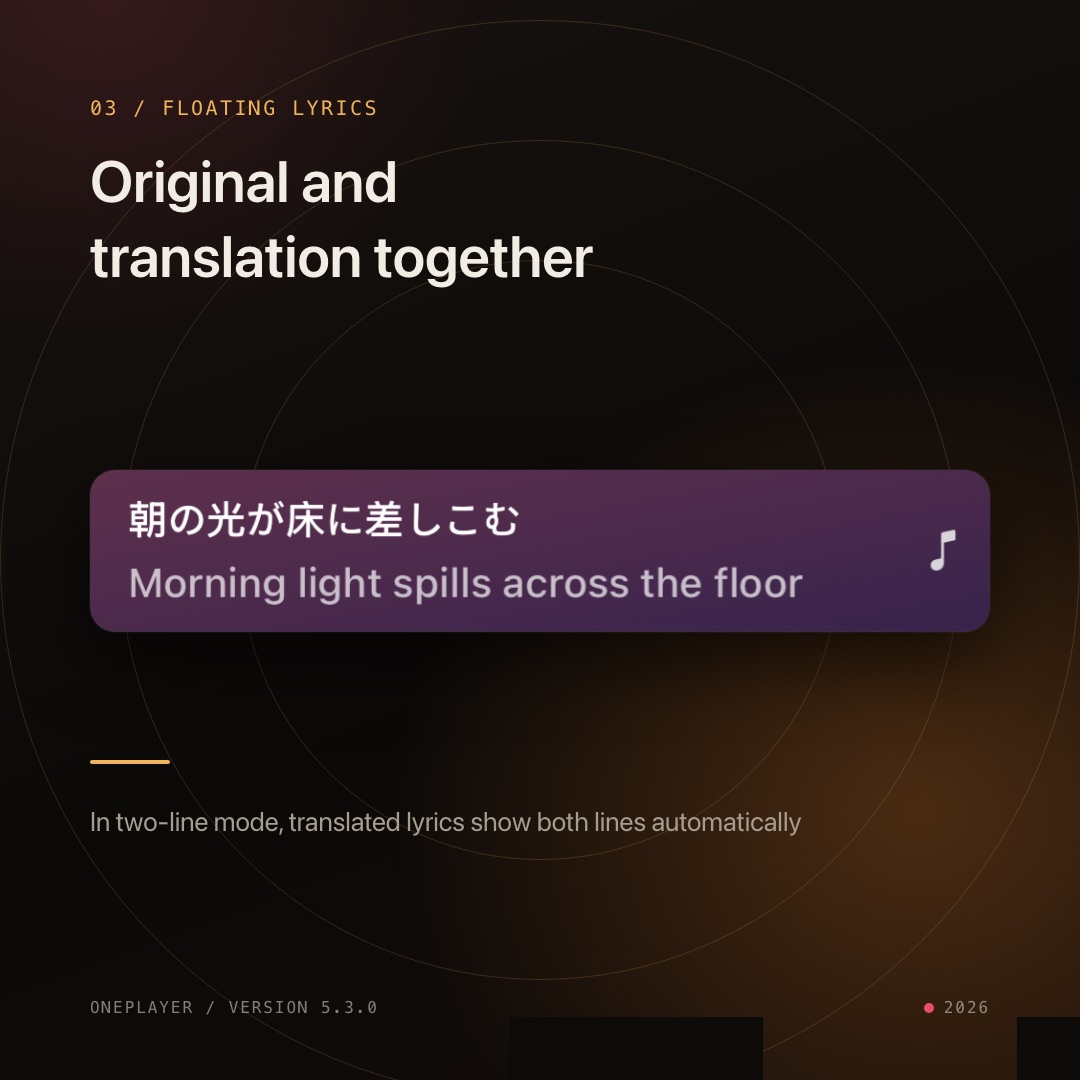
- No extra setup is needed. If the lyrics file includes a translation, or you have turned on lyrics translation on the player page, floating lyrics show the translation automatically.
- Lines without a translation still alternate between the two rows as before.
- If "Show Song Title" is on in the floating lyrics settings, two-line mode shows the song title and the current line first.
- Floating Lyrics is a Premium feature.
Lyrics sync: lyrics that keep pace with the sound
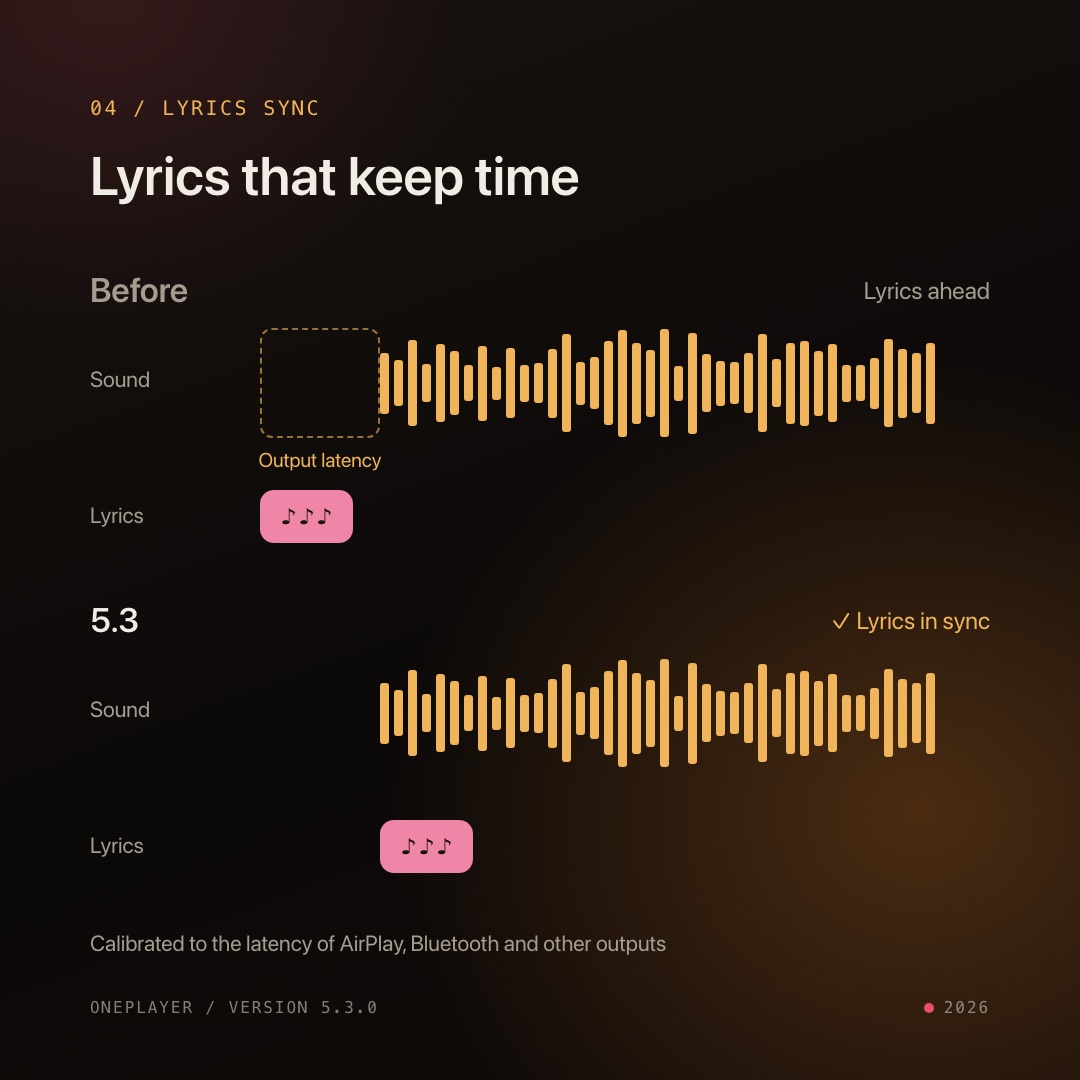
When you play through AirPlay or Bluetooth headphones and speakers, the sound takes a moment to travel before you actually hear it. That delay wasn't accounted for before, so lyrics could sometimes appear slightly ahead of the sound.
5.3 calibrates lyrics timing to the latency of your current output device, and recalculates when you switch devices. Player page lyrics, word-by-word highlighting, floating lyrics, the lyrics widget and the playback progress on the Lock Screen and in Control Center are all calibrated together, with nothing for you to set up.
Things to try after updating
- Play a favorite song, tap "…" → "Make Ringtone" on the player page, and turn the chorus into your ringtone.
- In Settings → "My Ringtones", choose a video you shot from Photos and make a ringtone that is all yours.
- Use floating lyrics in two-line mode, play a song in another language that has a translation, and switch to another app.
- Connect an AirPlay speaker or Bluetooth headphones and sing along to see how the lyrics keep up.
We hope 5.3 keeps the music you love with you, right down to the moment your phone rings.