OnePlayer 5.5: Six new lyric visualizers, and AI lyrics with your own API key
OnePlayer 5.4 gave your music a picture. This update does the same for the lyrics.
OnePlayer 5.5 adds six lyric visualizers. The whole screen belongs to the lyrics, and each word lights up as it is sung.
AI lyrics recognition can now use your own API key for cloud recognition, which is more accurate and can understand Cantonese. Recognition has moved to the background, and the results can be saved into your song files. CarPlay has a playing queue, and sorting on Apple Watch finally makes sense.
At a glance
- Six lyric visualizers: Neon, VFD, Shimmer, Stage Light, Clockwork and Star Voyage fill the screen with lyrics that light up as they are sung.
- AI lyrics recognition: use your own Qwen or Volcano Engine API key. Recognition runs in the background, several songs can wait in line, and results can be written to the song file.
- CarPlay: a new playing queue, plus lists and sort orders that match iPhone.
- Apple Watch: songs sort by number, Chinese and English titles sort together, and lists now run from A to Z.
- Floating Lyrics: align lyrics left, center or right.
- iPhone Duo and iPad: more refinements for Floating Lyrics and visualizers on Duo, and a top tab bar on iPad that lists every page.
Six lyric visualizers: lit as they are sung
You open them the same way as the visualizers in OnePlayer 5.4:
- iPhone and iPad: turn your device sideways in Now Playing, tap the Visualizer button (✦) and choose one from the row at the bottom.
- iPhone Duo: close it and turn the outer display sideways, or stand it half-folded on a table.
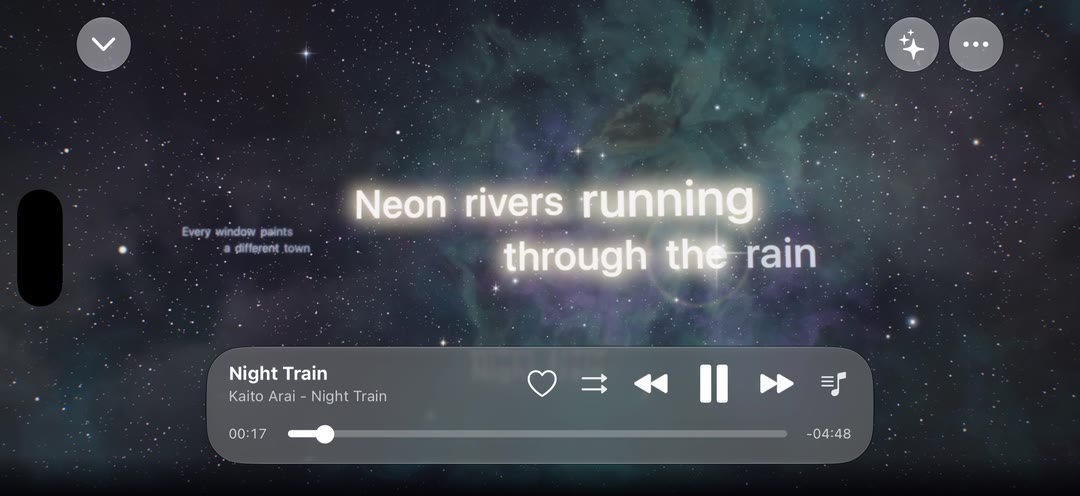
OnePlayer drew everything below in real time, following one song.
Neon Lyrics
Each line is a neon sign on a wall, and only the words being sung light up. Choose Outlined Tubes or Solid Tubes.
VFD Lyrics
The dot-matrix fluorescent display from the front of a classic hi-fi deck. Lyrics are built from points of light, with the time and audio format above and left and right channel levels below. Choose Green or Amber.
Shimmer Lyrics
Lines fly in from deep in a 3D space, the words being sung glow, and the previous line falls back into the distance. Choose a Fluid Artwork or Artwork Bokeh background. Both take their colors from the song's artwork.
Stage Light Lyrics
Smoke drifts across a dark stage while the lights follow the word being sung. Lines run both across and down the screen.
Clockwork Lyrics
The artwork sits inside a ring of gears, the lyrics fan out along an arc beside it, and an arrow points to the line being sung.
Star Voyage Lyrics
Each line waits in a nebula of its own. When the line changes, the camera flies through the nebula to the next one. The next line waits in the distance, the last one drifts away, and the way lines fly in and out keeps changing.
Choose Nebula Colors or Artwork Colors, and turn on Voyage Info to show readouts such as the leg and coordinates.
You'll find these options in Now Playing → "…" → "Display".
The visualizers follow the timing in your lyrics. Word-timed lyrics light up one word at a time, and for regular LRC lyrics the timing is estimated from the length of each line. During instrumental breaks, Shimmer and Stage Light keep moving: Shimmer sways gently, and the Stage Light beams sweep back and forth along the line.
Lyrics need timestamps. Without them, only the song title is shown. If a song has no lyrics yet, try AI recognition below.
Cover & Lyrics is free for everyone. These six, like the other visualizers, are Premium features, and you can try each one for 10 seconds before upgrading. For more details, see the music visualizer guide.
AI lyrics: cloud recognition with your own API key
If a song has no lyrics, AI can listen to it and write timed lyrics for you.
New in 5.5 is Your Own API Key: enter your own Qwen (Alibaba Cloud Model Studio) or Volcano Engine (Doubao Speech) API key to recognize lyrics with cloud AI.
Why use cloud recognition
- More accurate words: on 4 Chinese songs with reference lyrics, Qwen's character error rate was about 7%, compared with about 21% for on-device recognition.
- More accurate timing: on the same songs, 84% of line starts landed within 1 second of the original vocals, compared with 62% on device.
- Understands Cantonese: in our test with a Cantonese song, only Qwen got it mostly right.
- Very low cost: in our tests a song cost about ¥0.003 with Qwen and about ¥0.06 with Volcano Engine (Chinese yuan). Your provider's bill has the final word.
- Works from iOS 15: on-device recognition needs iOS 26, while Your Own API Key works on iOS 15 and later.
These figures come from a small set of songs tested in October 2026. Results vary with the song and the singing.
How it works
- Audio never passes through OnePlayer: audio goes straight from your phone to the provider you choose. OnePlayer never receives your audio, API key or recognized lyrics.
- Your key stays on your device: it is stored in this device's Keychain, is only sent to the provider's official address, and can be deleted at any time.
- Pay only for what you use: your provider bills your own account. OnePlayer adds no extra charge.
- Per-line or per-word: both are supported. Choose per-word and the lyric visualizers above can light up one word at a time.
- Long songs are split automatically: with Qwen, songs longer than about 4 minutes 40 seconds are recognized in sections, and the seams are matched up by their text.
- Small uploads: audio is first converted to 16 kHz mono m4a, about 2 MB per song.
- No made-up lyrics for instrumentals: in our tests, instrumental tracks did not get invented lyrics.
Set it up in three steps
- Open Settings → Lyrics → AI Speech Recognition Engine, and under Your Own API Key tap Set Up API Key.
- Choose a provider and region, then tap Open Console to Get a Key and create an API key. The key must be created in the region you chose, and Volcano Ark keys beginning with ark- won't work.
- Paste the key and tap Test and Save.
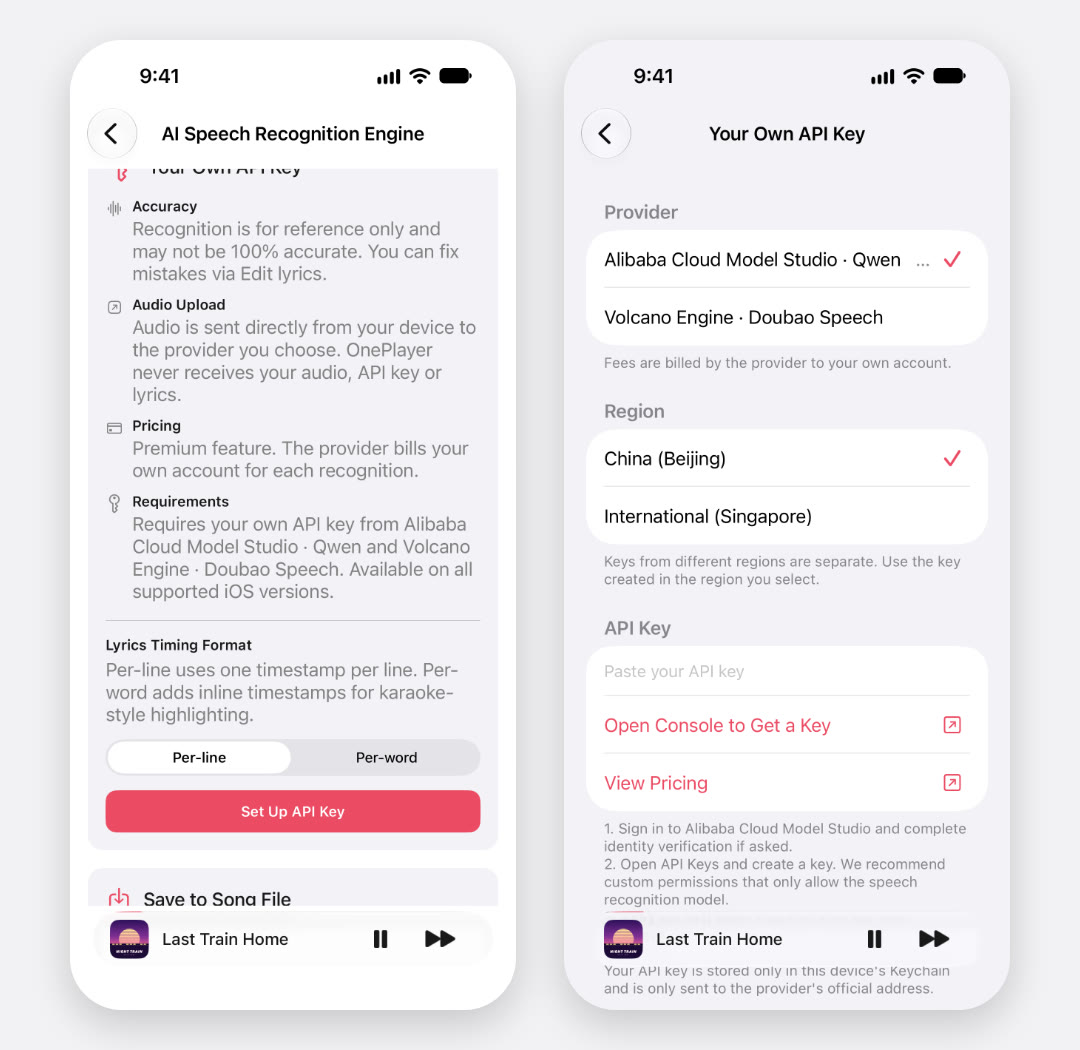
If you're not sure which to choose, start with Qwen. The page also has a View Pricing link. To test your key, OnePlayer sends one second of silence, and the provider may charge a tiny amount for it.
Recognition in the background
Recognizing lyrics used to mean waiting on the page, with no way to cancel. Now it runs in the background, whether you use on-device recognition or your own API key.
In Now Playing, tap "…" → "Recognize Lyrics with AI", or tap the button shown in the lyrics area of a song without lyrics.
Once it starts:
- No waiting: change songs, go to another page or switch away from the app. The lyrics still end up with the right song.
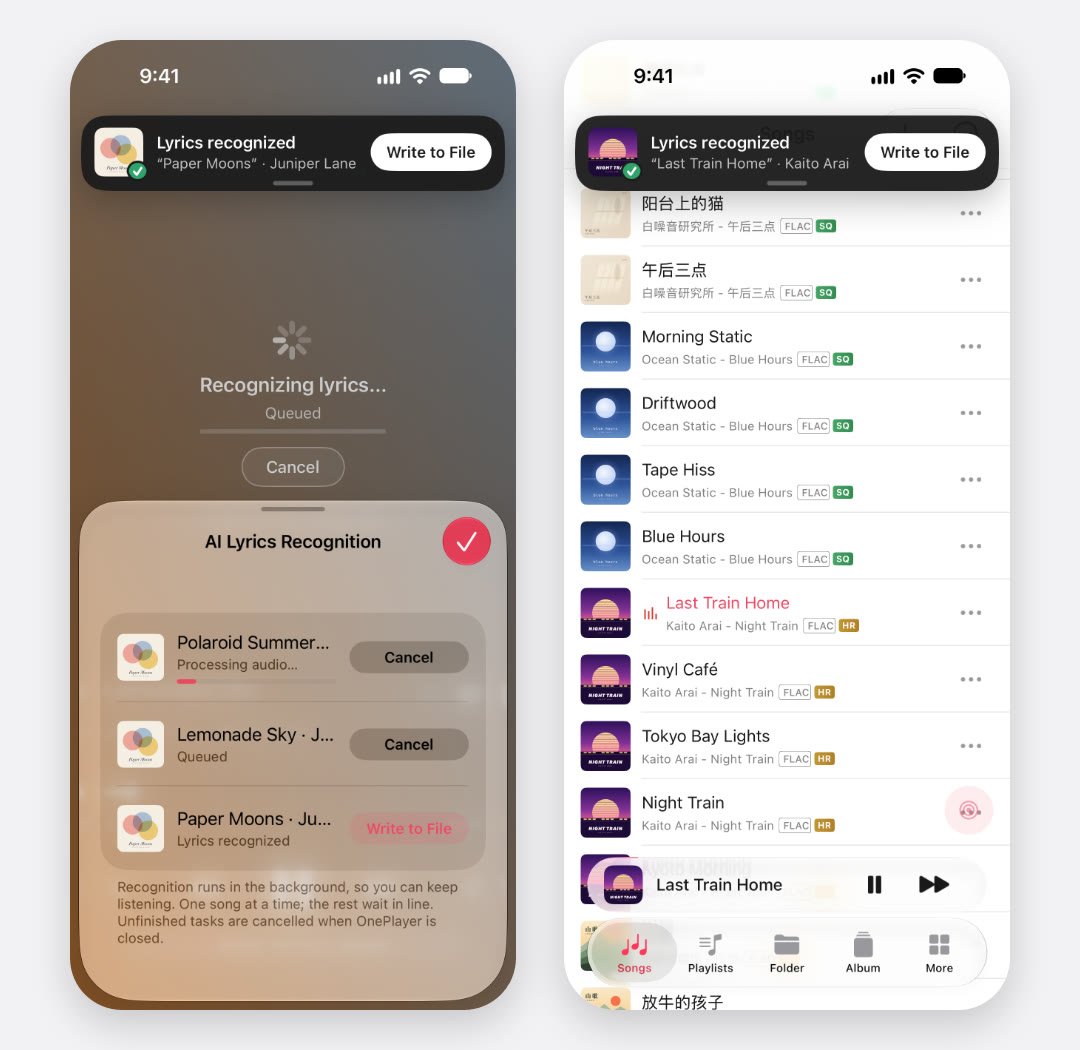
- Several songs can wait in line: start recognition on other songs and they run one at a time. See them all in "…" → "AI Lyrics Tasks".
- Cancel at any time: the lyrics area shows the progress and a cancel button. Providers may still bill for requests already sent.
- You'll know when it's done: in Now Playing the new lyrics simply appear. On other pages a banner pops up, and if the app is in the background you get a notification, provided notifications are allowed.
Write lyrics to the song file
Recognized lyrics can be saved into the song file, so they show up in other players too. Just tap Write to File when recognition finishes.
- Where they go: into the audio file's lyrics tag by default, or a .lrc file with the same name if you prefer. Formats that don't support embedded lyrics get a .lrc file.
- Automatic writing: turn on "Write automatically after recognition" on the AI Speech Recognition Engine page. It is off by default.
- Nothing gets overwritten by accident: automatic writing leaves files that already have lyrics alone, and manual writing asks before replacing anything.
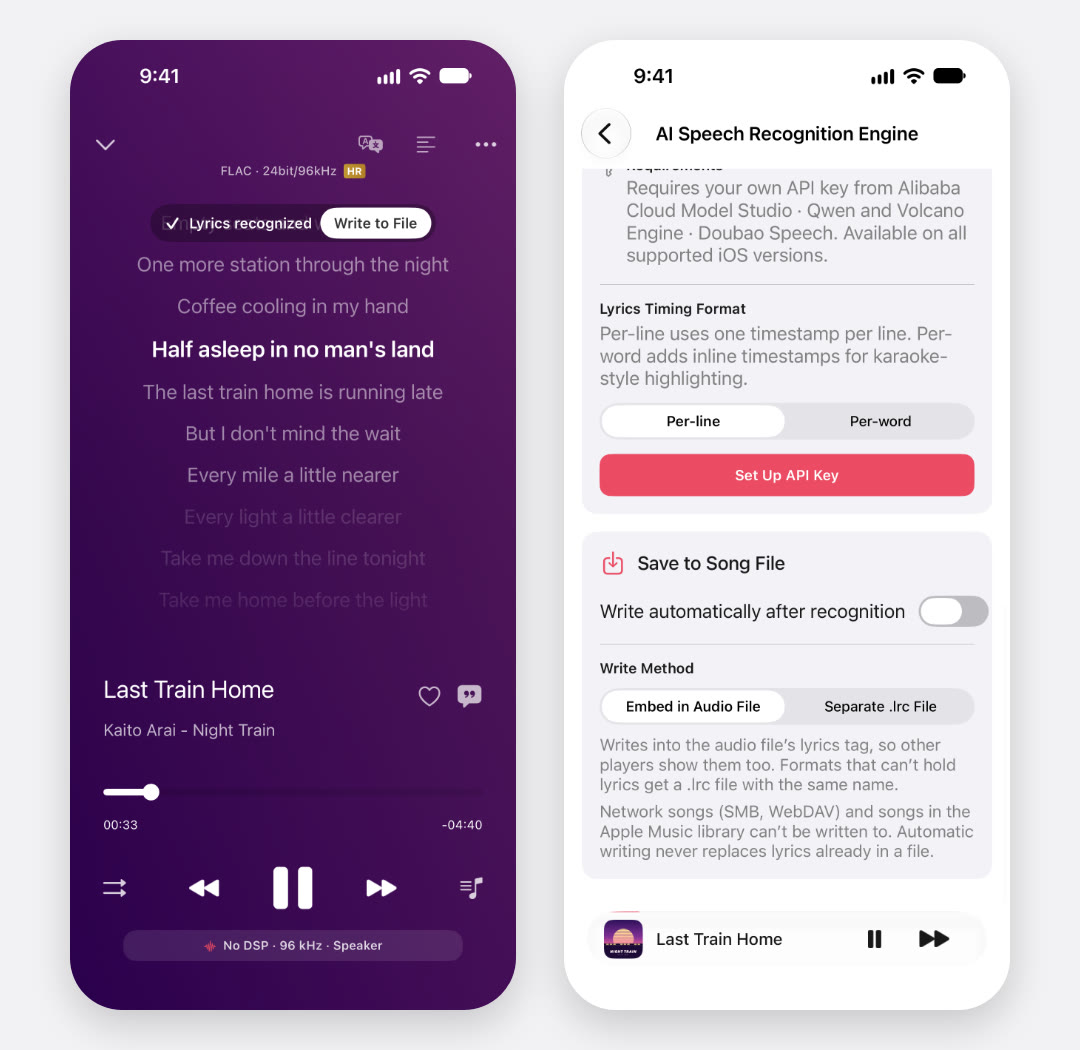
Network songs (SMB, WebDAV) and songs in your Apple Music library can't be written to.
On-device recognition and Your Own API Key are both Premium features. For more details, see the AI speech recognition guide.
CarPlay: see what's coming up
- Playing Queue: Now Playing in CarPlay has a new Playing Queue button. It lists what's coming up from the current song, and tapping a song jumps to it. Without Premium it shows 10 songs.
- Lists that match iPhone: Songs, Playlists, Albums, Artists and Files now have the same contents and sort order as on iPhone. Change the order on your phone and the car follows right away.
- Multi-disc albums: sorted by disc number and track number.
- Skip intros and outros: your skip settings now also apply when you play a playlist or album from CarPlay.
Apple Watch: sorting that makes sense
Songs titled 1.xxx, 2.xxx and 10.xxx used to sort as 1, 10, 2 on your watch. They now sort by number, the same way Finder does on Mac.
- Mixed Chinese and English titles: sorting ignores case, and Chinese titles sort by pinyin alongside English ones.
- List direction: Albums, Artists and Playlists now run from A to Z.
- Where this applies: songs, playlists, albums, an artist's songs, search results, and SMB and WebDAV file lists.
Floating Lyrics: choose the alignment
Settings → Lyrics → Floating Lyrics has a new Lyrics Alignment option: Left, Center or Right. The default is Left.
Lines shorter than the window follow your choice, and long lines still fill the row.
iPhone Duo and iPad
iPhone Duo
- Floating Lyrics: the window is shorter and the same size on the inner and outer displays.
- Half-folded on a table: the picture now fills the full width of the top half, with no margin left for the under-display camera.
- Outer display held sideways: the picture is centered on the screen, and VFD Lyrics and the VU meters are larger.
- Unfolded and sideways: lists and details now use system split columns, so buttons are no longer cut off by the divider in the middle.
- After folding or rotating: the last row of a list is no longer hidden behind the mini player.
iPad
- Top tab bar: in wide windows it lists every page, with no more More tab. Anything that doesn't fit is tucked behind the arrow in the tab bar. This needs iPadOS 18 or later.
- Playlist order: you can reorder the songs in a playlist by hand again.
- Network: fixed crashes when narrowing the window or moving a folder to the Network page.
Other fixes
- Every pass in Repeat One now counts as a play, and Last.fm records it too.
- With one song in the queue, Repeat All and Shuffle no longer stop when it ends.
- Now Playing no longer shifts down while lyrics are being translated.
- AI recognition no longer fails on MP3 files with a few damaged frames.
Things to try after updating
- Play a song with lyrics, turn your phone sideways, tap ✦ and pick a lyric visualizer.
- Add your own API key, recognize a song without lyrics, and keep listening to something else while it runs.
- Next time you're in the car, check out Playing Queue in CarPlay.
OnePlayer 5.5 is available now. Search for OnePlayer on the App Store to update.
Screenshots and clips were captured in the iPhone simulator. The songs, artwork and lyrics are sample content we made ourselves. The AI recognition clip and screenshots use sample data with no provider connected, and the waiting times are for illustration only.